A free, full-featured, high-performance, flexible, self-hosted WordPress Learning eXperience Platform that lets users purchase/enroll into curriculums, pathways, quizzes, certificates, commerce, memberships, and a built-in xAPI 2.0 / cmi5 record store built for big data while using less resources than any other WordPress-based LMS.
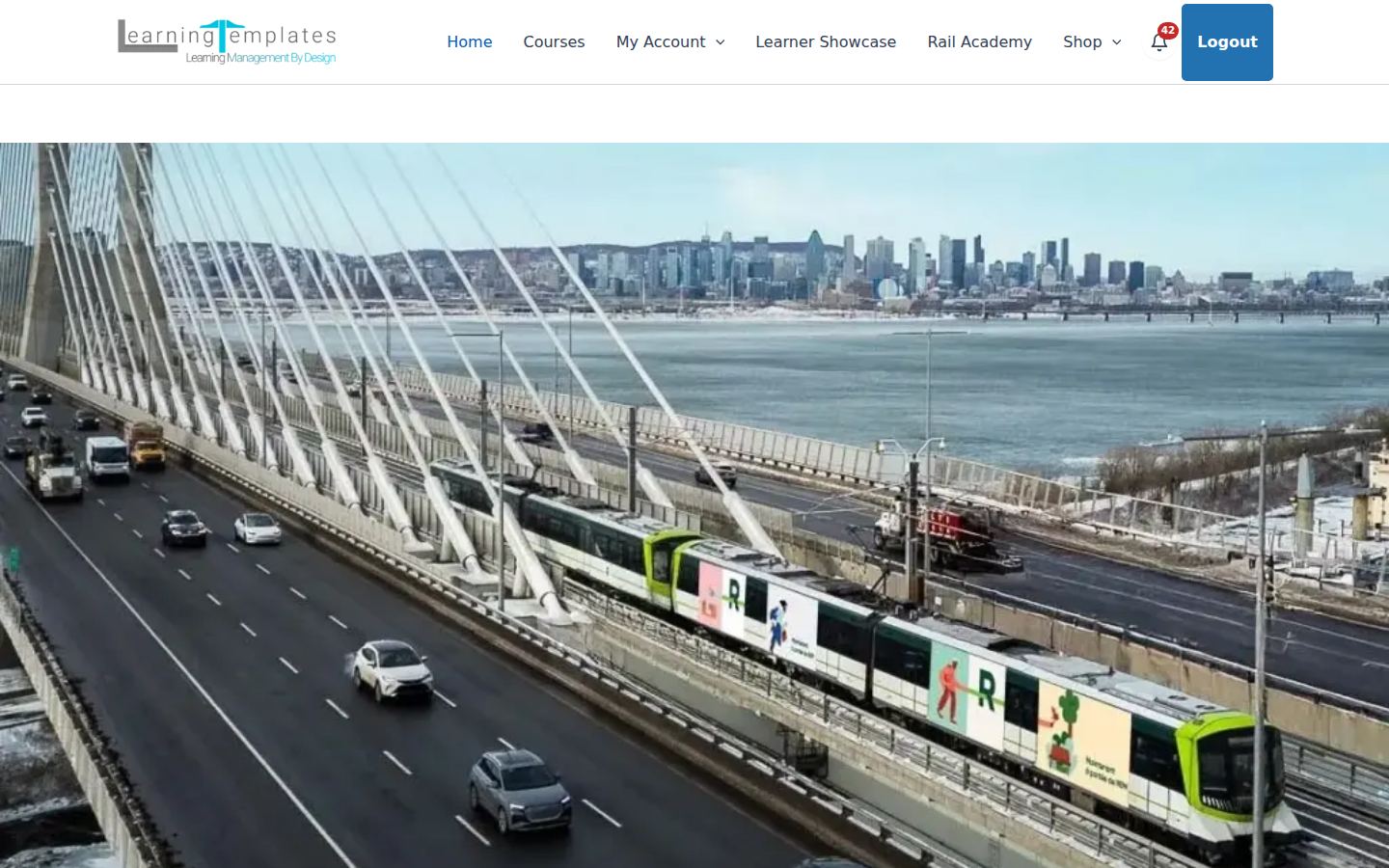
The public demo homepage. The header bell is the in-app notification control for signed-in people.
Build the program
Content is a curriculum of pathways. A pathway can hold courses, modules, lessons, topics, and quizzes, including instructor-led sessions.
Curriculum
One program, many routes
A curriculum is the program learners enroll in. It carries the description, the pathway tree, and the learner home: outline, progress, and the next item to open.
Use case. A transit agency publishes one academy. Every new hire starts in Rail Safety Foundations, then follows the pathway for their job.
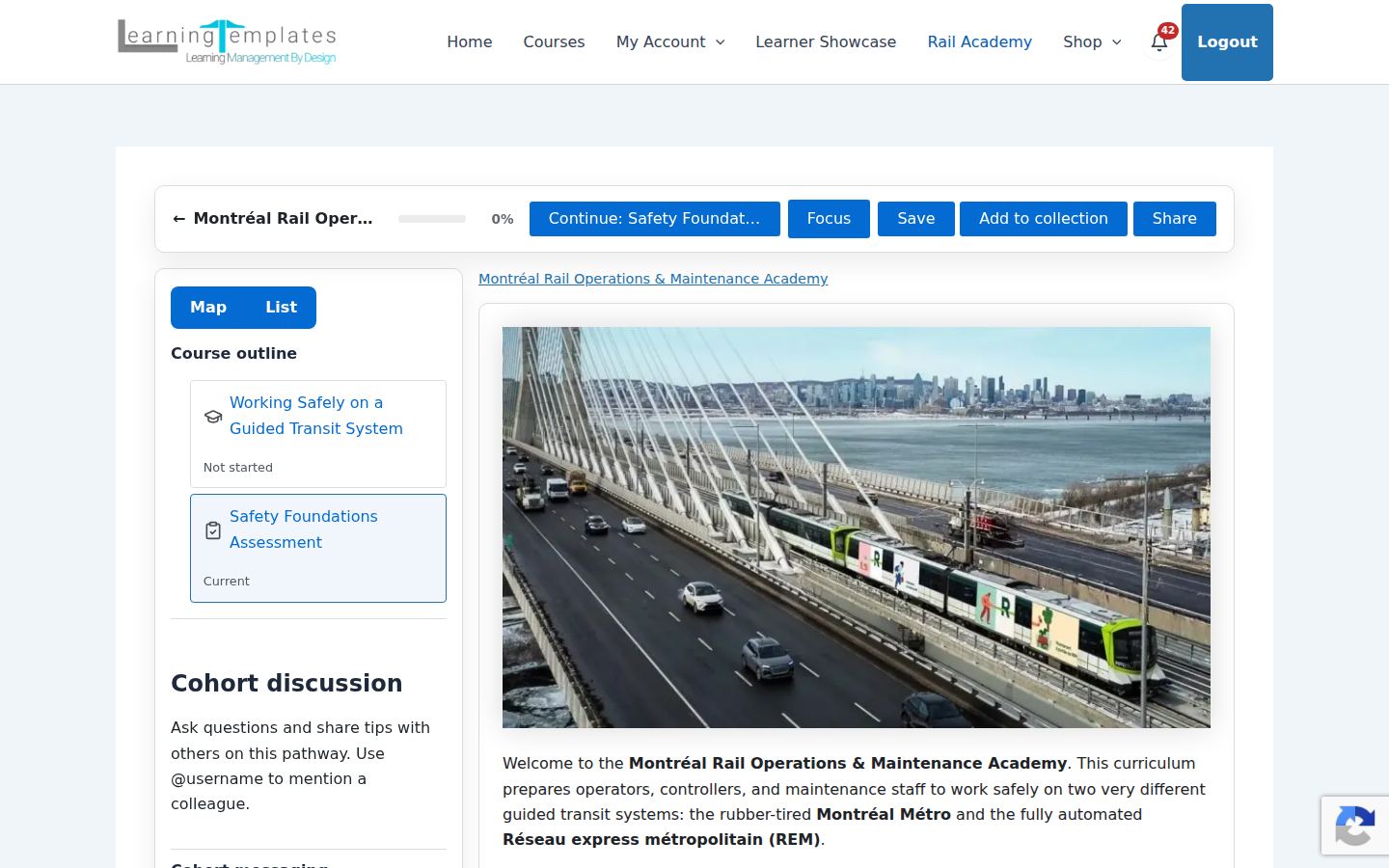
Curriculum home on the demo: outline, progress, and the journey map.
Pathways
Tree and journey map
Authors assemble the pathway in the curriculum editor. Tree view is a drag-and-drop builder: long-press a node, then drop it on another to branch under it. Branches let people take the track that fits them without forcing every sibling.
Use case. After the shared safety pathway, operators, controllers, and maintenance staff each follow a different branch of the same curriculum.
Create Pathways on the Tree tab: Rail Safety Foundations and the branches under it, with Save pathway and Add.
Journey map
The same pathway, drawn as a route
Journey map lays out the nodes from the tree. Drag each one into place, or use Auto layout. A background image can sit behind the route. Save the tree first so every node is available here. Learners see this map on the curriculum.
Use case. The academy map follows the Montréal network. Safety lessons sit along the track, and each job branch continues from that shared start.
The journey map an enrolled learner sees: every learning object keeps its icon and its place on the route.
Online courses
Courses inside a pathway
An online course is a step in the pathway that can require earlier steps before a learner continues. It can contain modules, lessons, topics, and quizzes, which can have sections of the course as freely navigable while other sections and pages can contain access rules.
Use case. “Working Safely on a Guided Transit System” is the first course every role completes before a job-specific pathway opens.
Pathway choices in the course outline. The learner picks one path to continue.
Modules
A chapter, or a section in the outline
A module is a level in the course outline, or a section divider. As an outline level, learners open the module page. With Use as section divider on, the module title groups the posts under it in the list course outline, and choosing that title opens the next item.
Gate progress in this module forces a gated section inside a non-gated course. Learners finish that module’s items in order, while the rest of the course stays open in any order.
Use case. Hazardous Energy Control (Lockout) is the section divider for the lockout lesson. That chapter can stay gated while the rest of a non-gated course stays open.
A module used as a section divider in the learner player. The list outline groups the lessons under the module title.
Lessons and topics
The pages people actually study
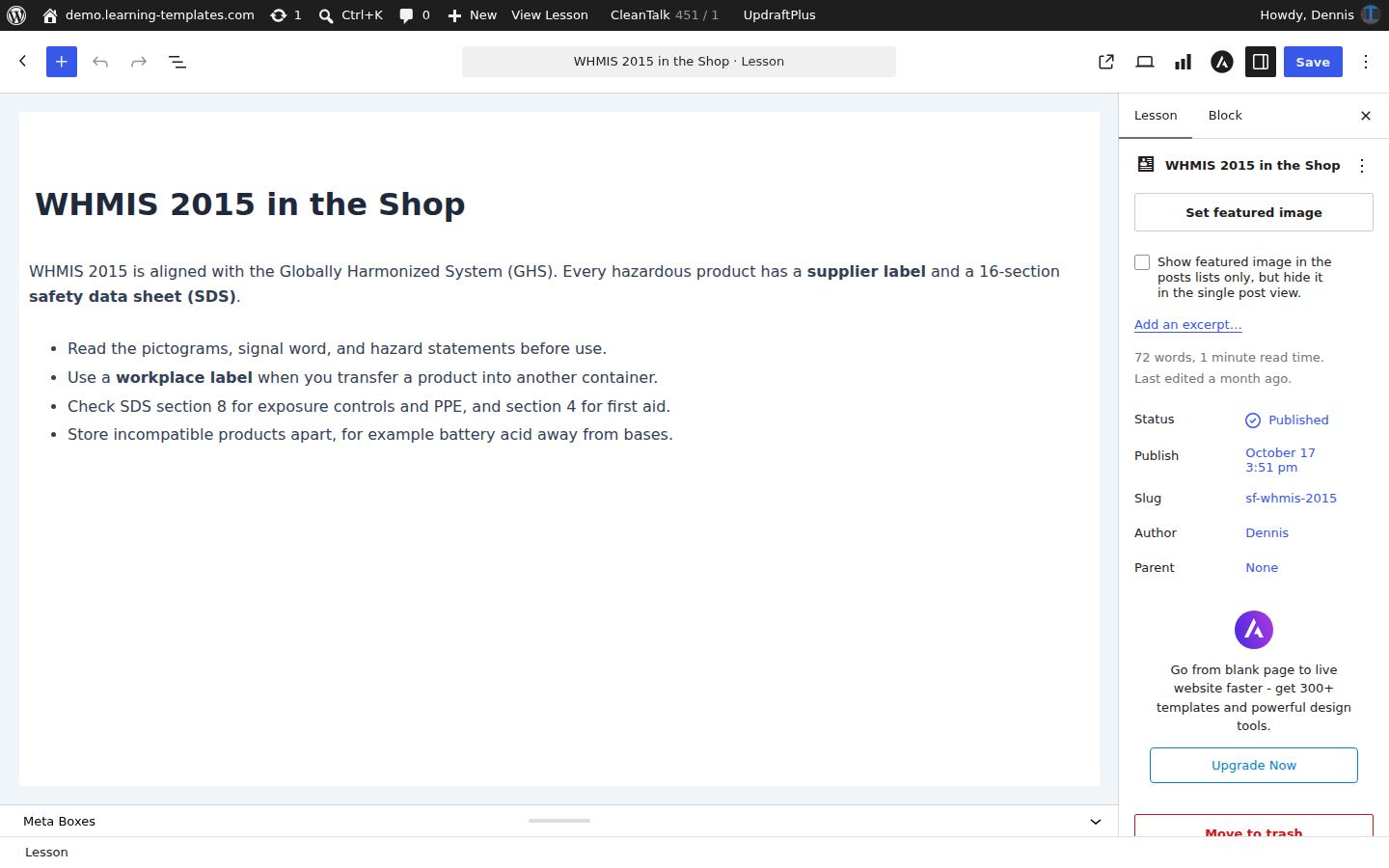
Lessons hold the teaching. Topics break a lesson into smaller pages when a subject needs more than one stop. Both are pathway objects, so completion is tracked back to the enrollment.
Use case. A lockout lesson introduces the rule. The next topic walks through a group lockout and a shift change.
A lesson in the learner player, with the course outline and navigation.
Topics
A finer step when a lesson is too big
Topics are optional. Turn the feature off and pathways stay at lesson level. Turn it on and authors can nest a checklist, a procedure, or a short reading under a lesson.
Use case. “Group Lockout and Shift Changes” sits under the lockout lesson so the procedure is its own completable page.
A topic in the learner player, with the course outline and navigation.
Cohort discussion
A thread for the people on this pathway
A curriculum or a pathway can host a cohort discussion in the learner player. The Cohort Discussion metabox turns it on. While a learner is on a pathway, only that pathway’s setting applies. If it is unchecked, the thread stays off for every node on that pathway, even when the curriculum has it enabled. Each pathway that is checked gets its own thread.
People on that pathway ask questions and share tips. Type @username to mention a colleague. Post Message adds the note to the thread.
Use case. During Rail Safety Foundations, someone asks who holds the lockbox key at a shift change, and a colleague on the same pathway answers under the lesson they are both studying.
Cohort discussion in the learner player, beside the page the pathway is studying.
Instructor-led training
Classroom courses, meetings, and the map
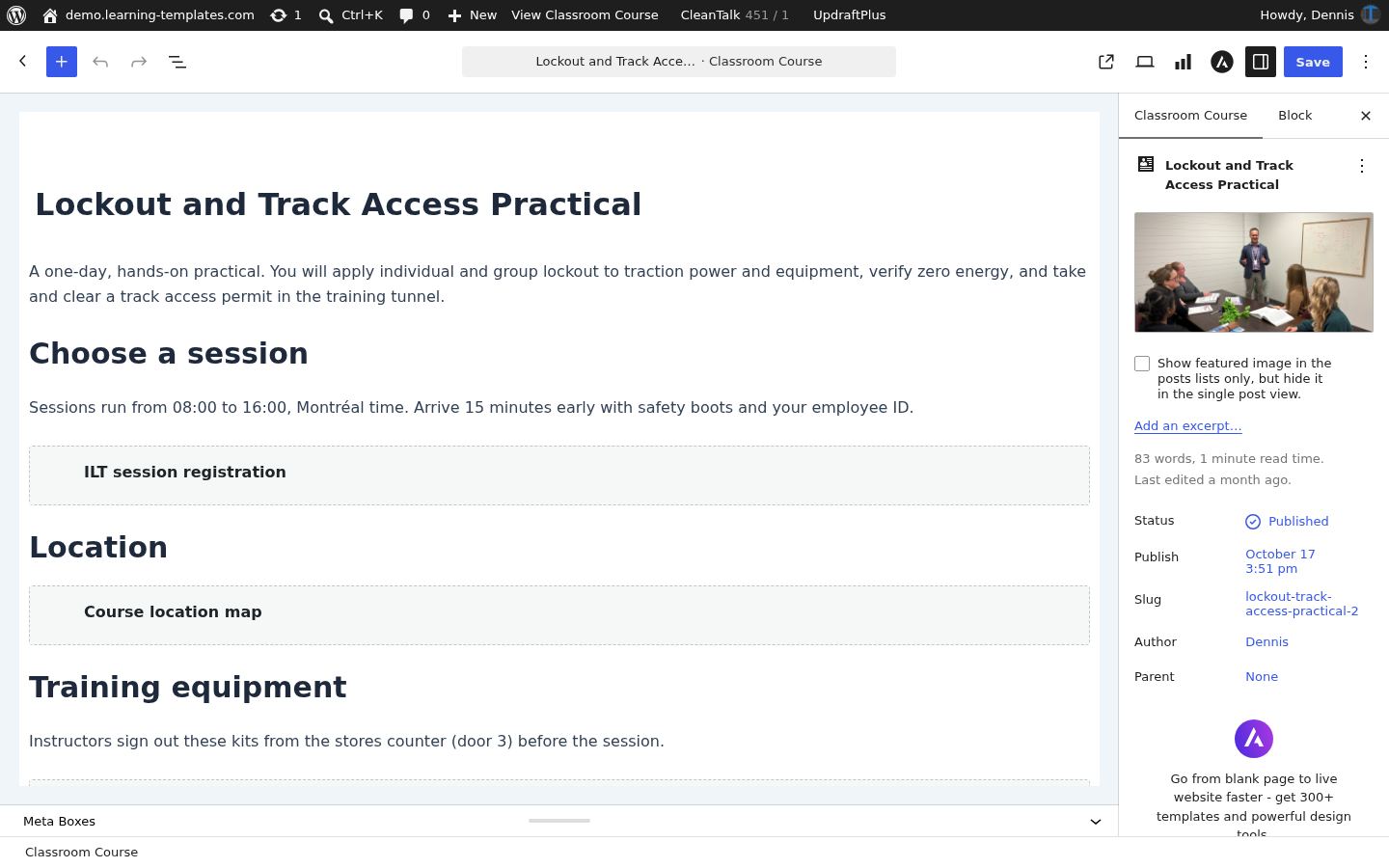
A classroom course is the in-person or live-online counterpart of an online course. Instructors and co-instructors schedule sessions, attach a facility and address, or connect Zoom, Microsoft Teams, Google Meet, Webex, or GoTo online meeting facilities. The course location map uses OpenStreetMap. Attendance can be recorded for any of the sessions and completion rules can be applied to attendees.
Use case. Lockout practice cannot be done on a screen. Learners register for a track-access practical, see where it is, and an instructor records who attended.
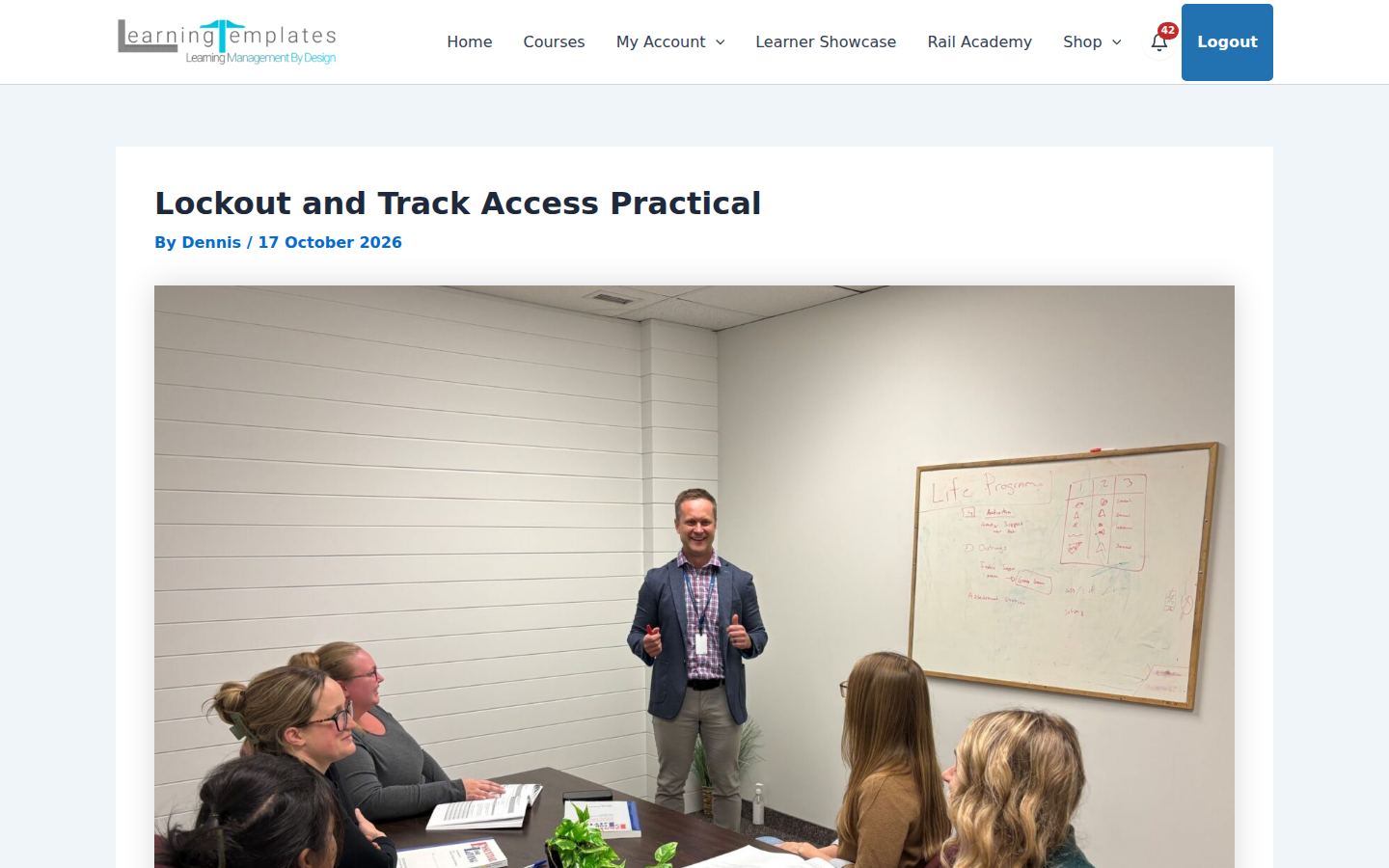
The instructor-led course on the demo.
Catalogue
What visitors browse before they enroll
The courses catalogue lists published curriculums. Layout, which fields show, and how cards are arranged are settings, not theme code.
Use case. A public training site leads with one academy card. A larger catalogue can list many programs the same way.
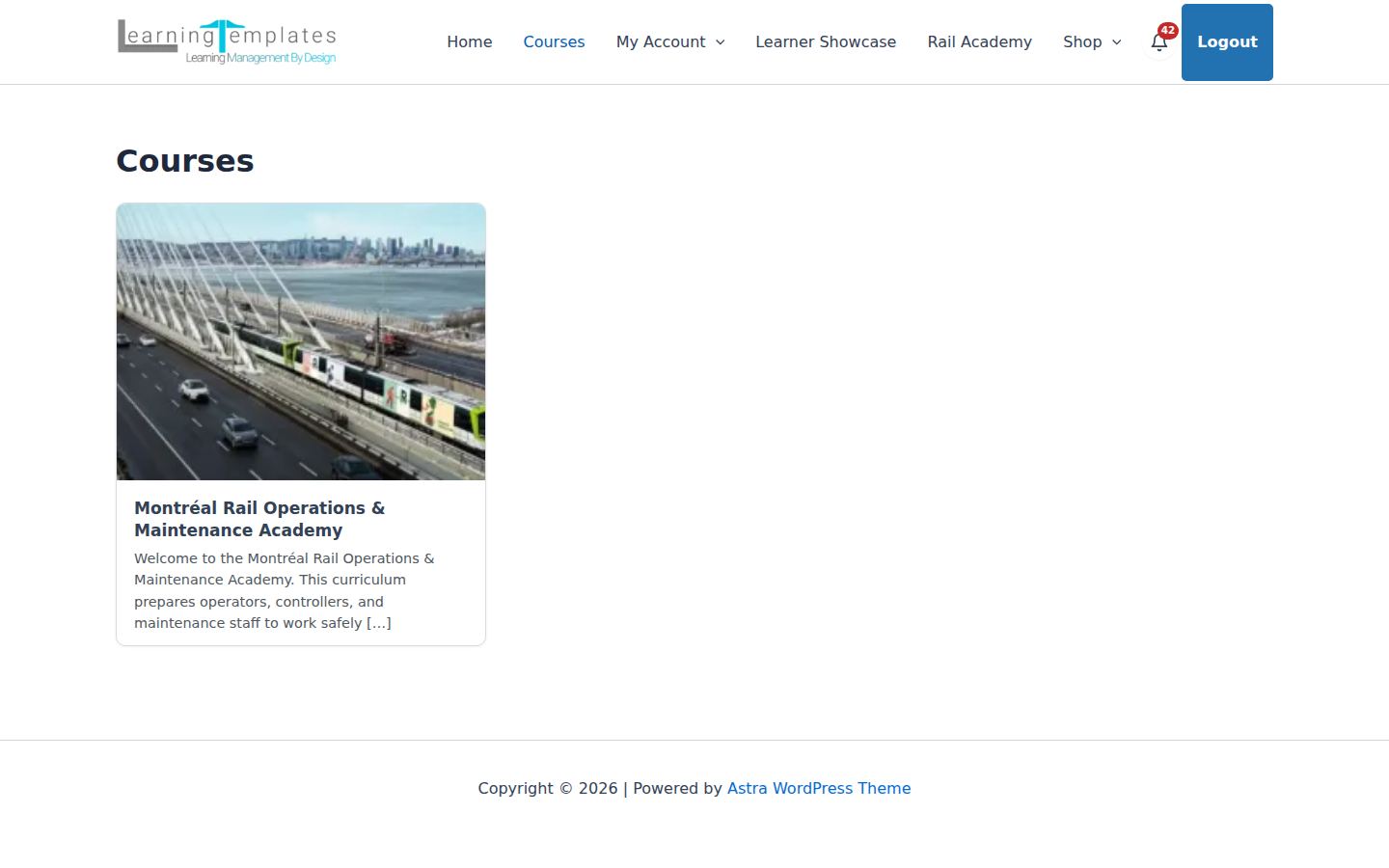
The courses catalogue.
The learner experience
Enrolled people move through a player: outline, progress, focus mode, and the actions around a page.
Learner player
Outline, progress, focus, save, share
The player wraps the current lesson with the pathway outline, a progress bar, and continue. Focus hides the rest of the site. Save adds the item to a collection. Share hands the page to someone else in the organization.
Use case. A new operator opens the academy, sees Safety Foundations is the current step, and continues without hunting through menus.
Continue, Focus, Save, Add to collection, and Share on the curriculum player.
Video lessons
Playback that can gate completion
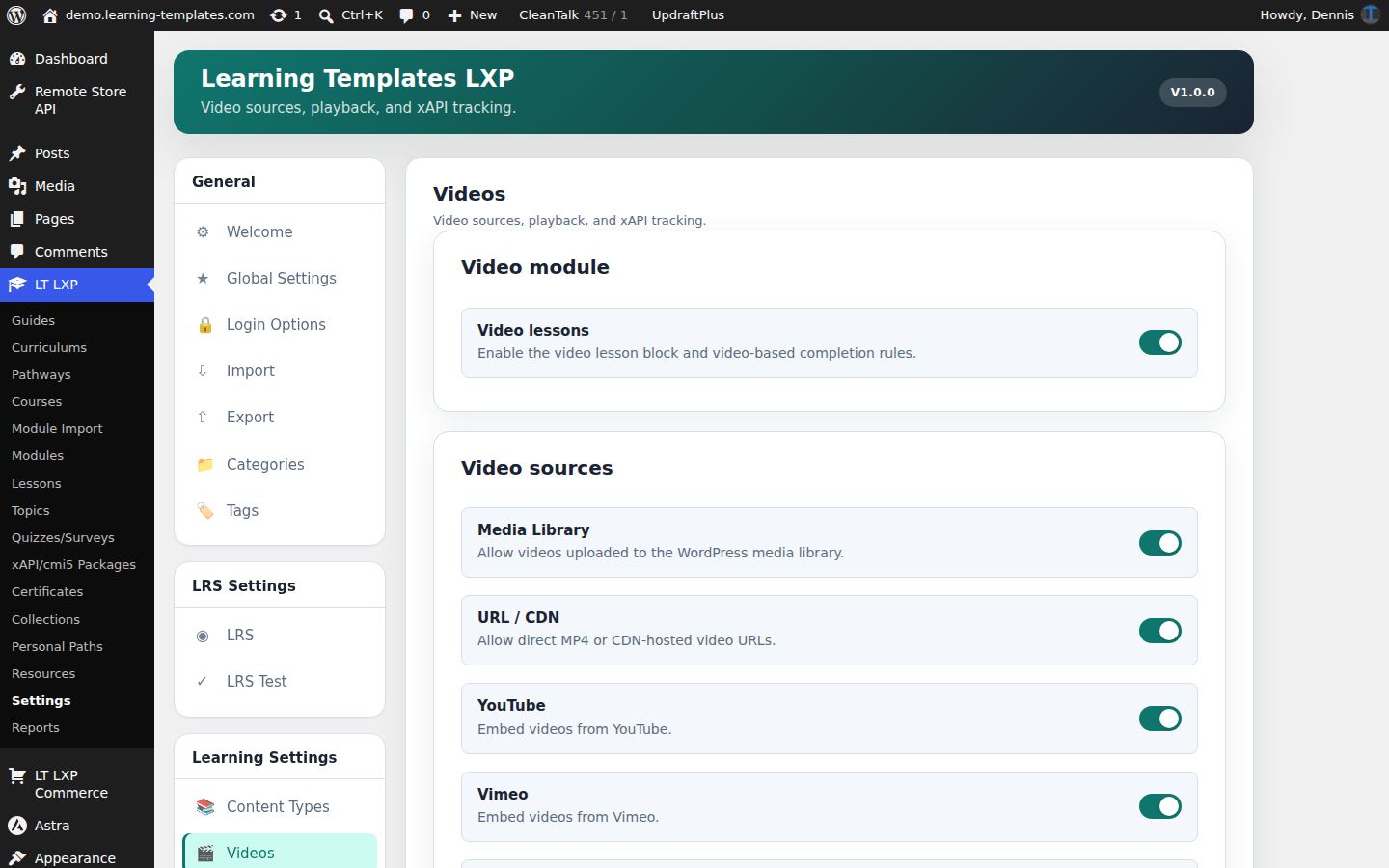
The video lesson block plays files from the media library, a URL or CDN, YouTube, Vimeo, or HLS. It can resume, require a watched percentage, and send xAPI Video Profile statements. Site-wide defaults live under Learning Settings → Videos.
Use case. A procedure video must be watched to 90 percent before the next topic unlocks, and the statement lands in the record store.
Video defaults in Learning Settings.
Gating and drip
What opens, and when
An online course can be gated or open, with a per-module override. Pathway items can wait on a prerequisite or a date. Locked steps stay visible so learners can see what is coming.
Use case. The practical stays locked until the briefing quiz is passed and the session date arrives.
The outline shows what is current and what has not started.
Notifications
A bell, not another inbox to remember
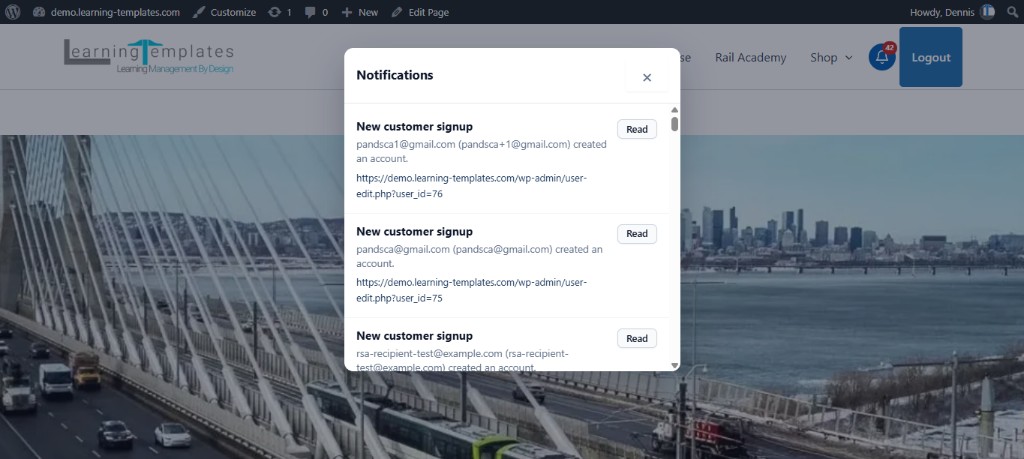
A menu item with the address #ltlxp-notifications renders as a bell for signed-in people. The badge is the unread count. The click opens the notification list. Email can be sent for the same events, from templates the site configures.
Use case. A supervisor sees a badge when a learner submits a practical reflection, and opens it without leaving the page they were on.
The notification list opened from the bell, with the unread count still on the badge.
Assessment
Quizzes and surveys use the same builder. Questions are blocks, answers can report to the record store, and results can award a certificate.
Quizzes and surveys
Quizzes, surveys and questions
A quiz is a pathway step. A survey can be added to any page. All 18 question types can be added to any page and when added to a quiz page, the page can apply rules to the questions. Question blocks consist of multiple choice (single), multiple select, true / false, matching, ordering, fill in the blank, short answer, essay, image and text drag and drop, image hotspot, numeric, calculated numeric (LaTex), cloze, Likert scale, hot text, matrix / grid, file upload, and audio / video response. Questions contain distractors. Points and an LRS report can be set per question. Question statements, answers, and points are reported. Surveys use the same tool when the result is not a grade.
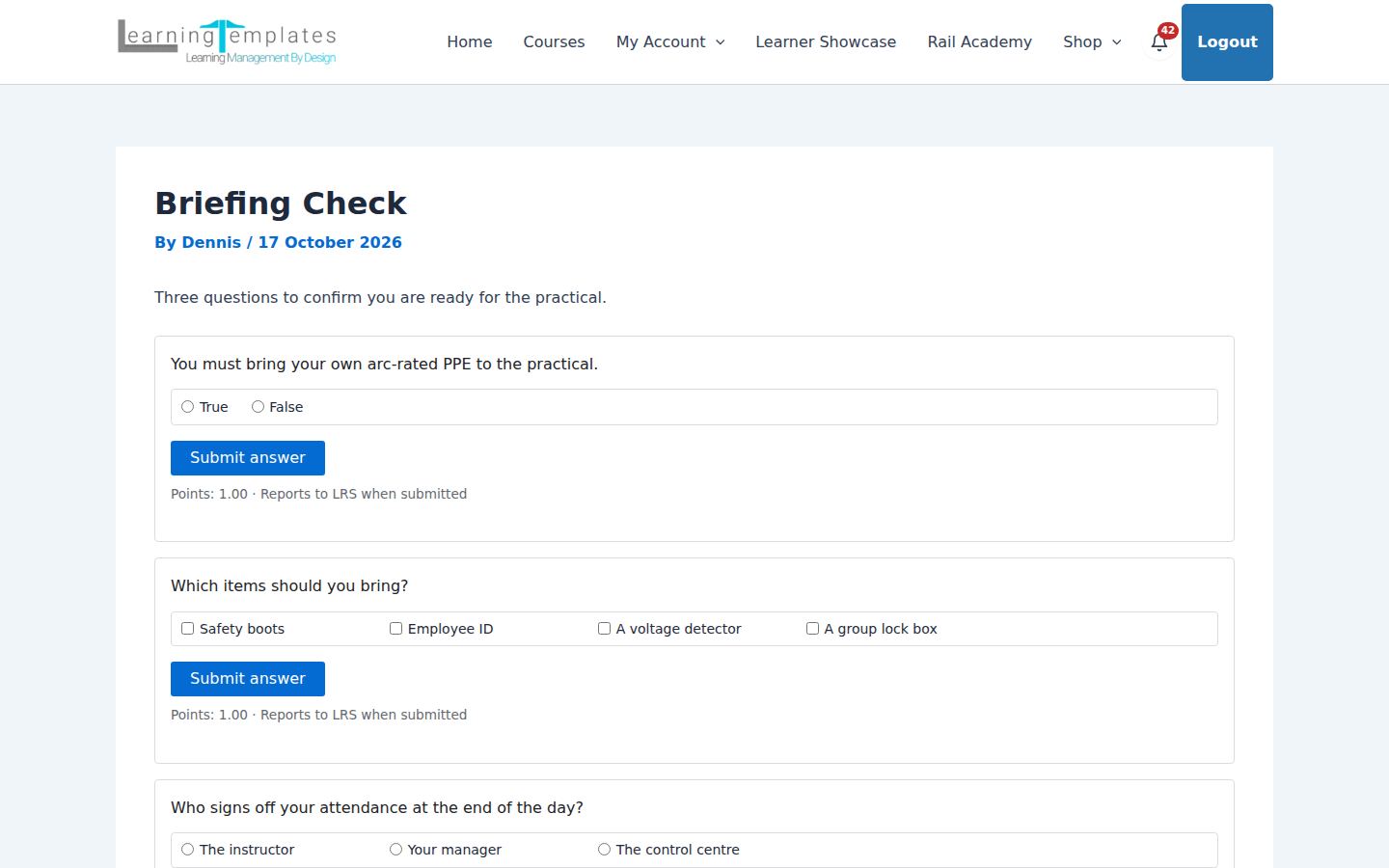
Use case. Before a track practical, three questions confirm the learner has PPE, knows what to bring, and knows who signs the day off.
Briefing Check on the demo.
Quiz builder
Authoring, pools, and grading
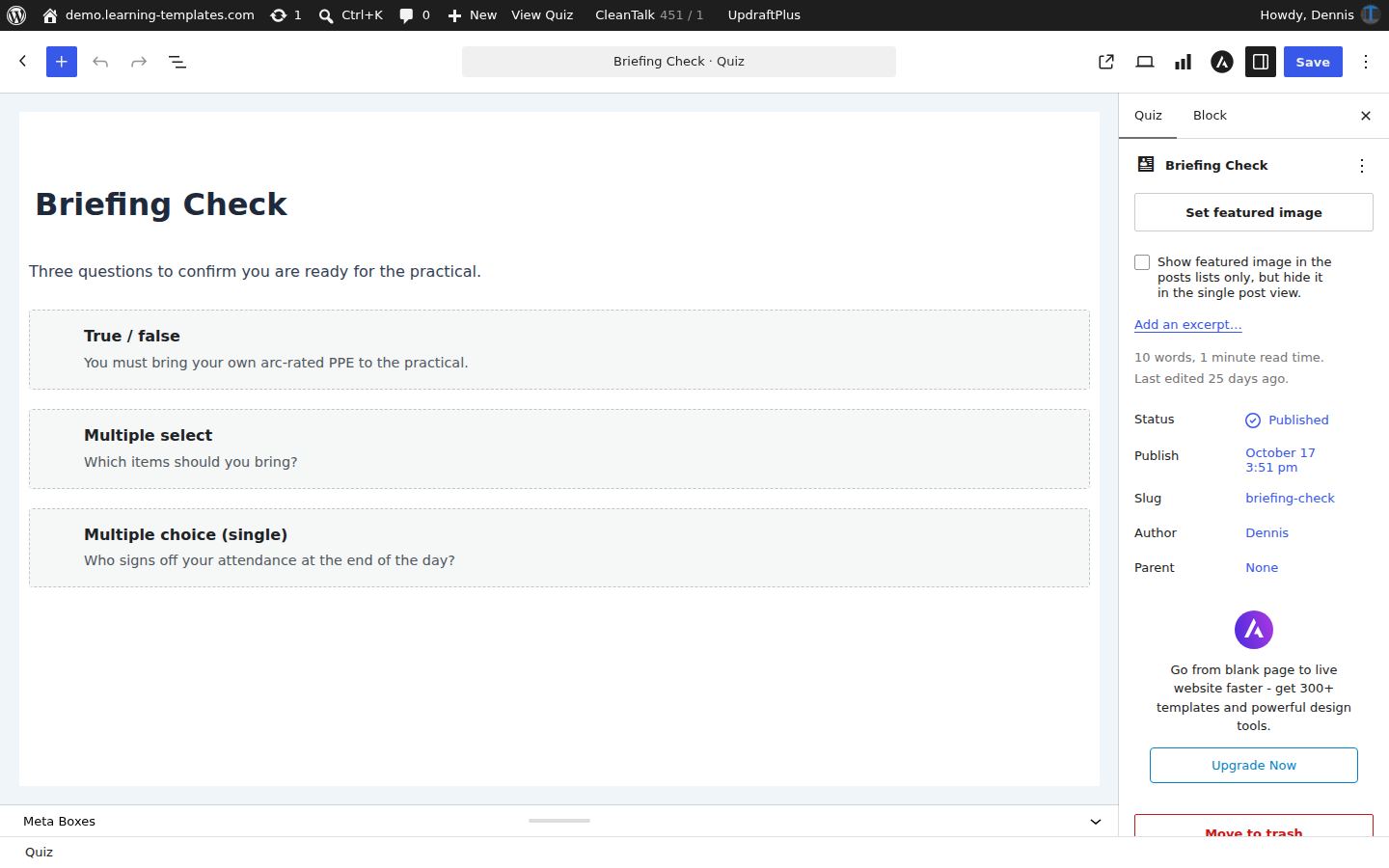
The quiz editor is where question blocks, scoring, attempts, and certificate rules are set. Question pools and randomization are available when a quiz should not show the same static questions every time. Manual grading is there for answers a machine should not mark.
Use case. An instructor grades a short written answer from the practical briefing and the pathway updates when the grade is saved.
The quiz editor for Briefing Check.
Learning data
Statements stay on your site unless you point the tools at another record store. Packages, the built-in LRS, and reports are separate pieces of the same record.
xAPI and cmi5 packages
Launch a package without giving it the whole site
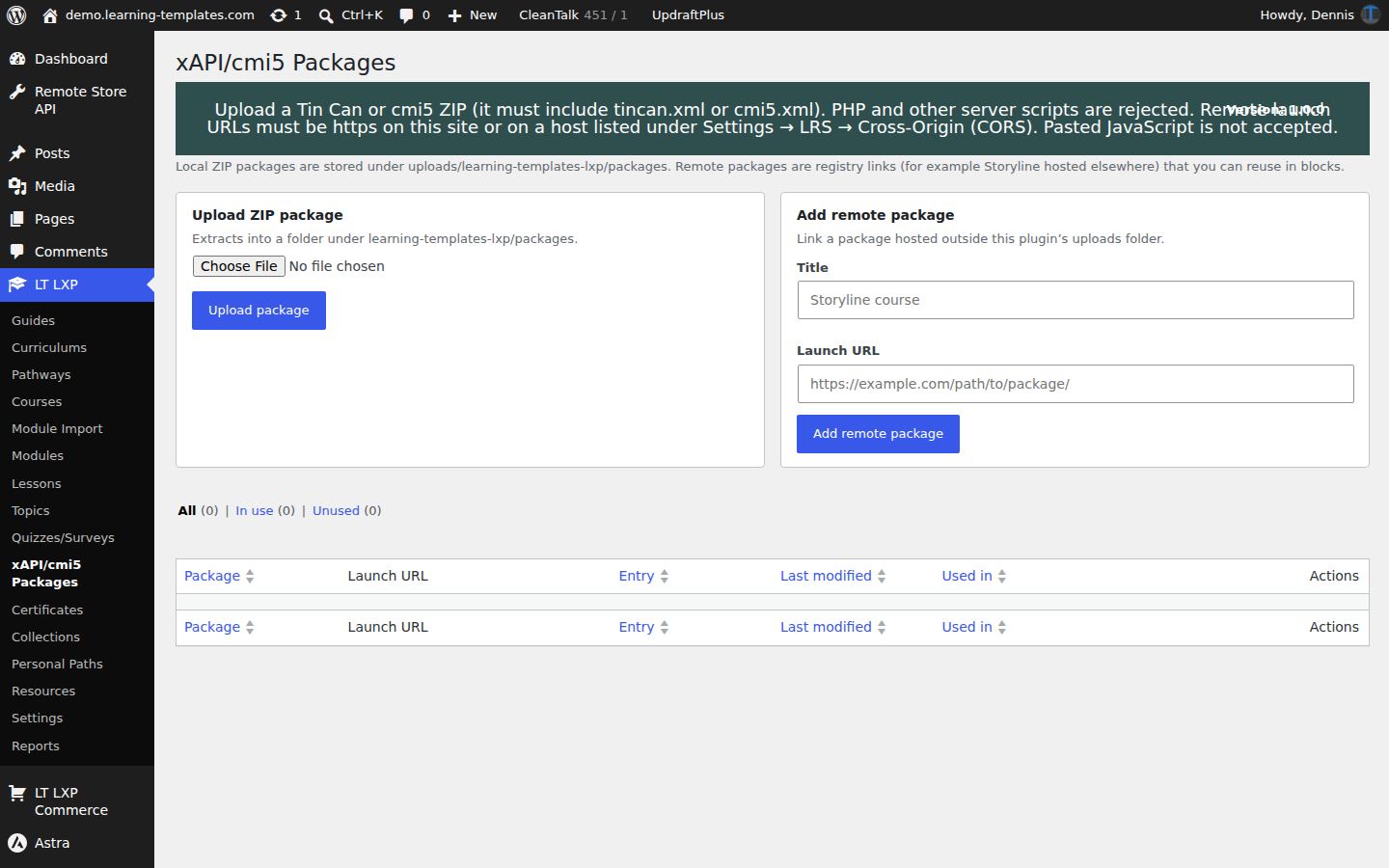
Upload a Tin Can or cmi5 zip or use H5P interactions natively. A remote launch address has to be https and on the CORS list an administrator already approved. SCORM 1.2 to 2004 are not supported, while xAPI and cmi5 packages provide granular reporting. Videos also provide granular reporting.
Use case. A vendor ships a cmi5 module for signal rules. It launches inside the pathway and its completion is stored with the rest of the academy.
The package library in wp-admin.
Learning Record Store
An endpoint on this WordPress site
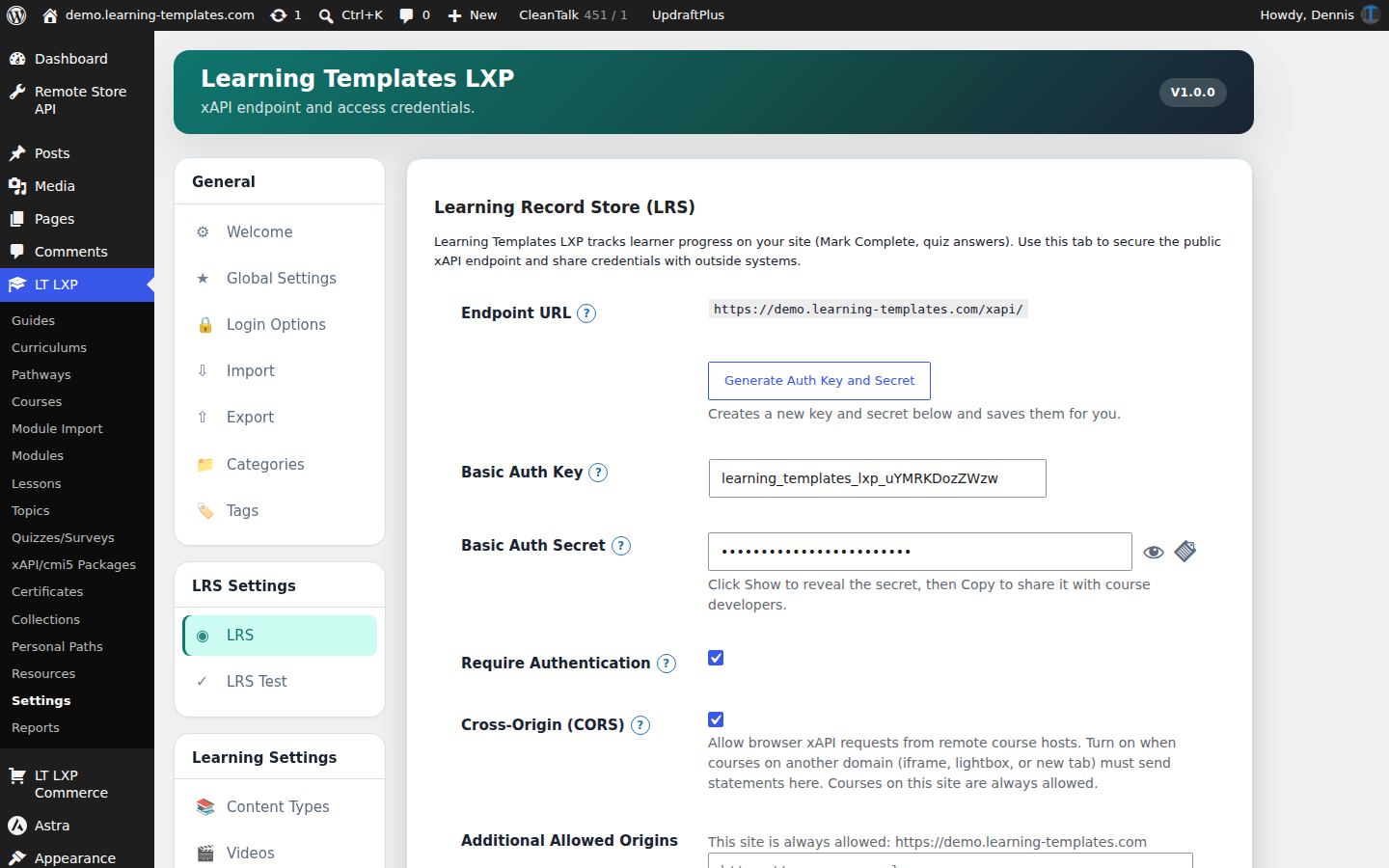
The embedded LRS stores statements in the WordPress database and exposes an xAPI endpoint. Credentials secure your database and the endpoint address are authentication settings that block external bad actors. Remote xAPI or cmi5 published courses can be launched within a local course and reported in the local database, while residing on an external secure service when that service is registered in the CORS whitelist.
Use case. Completion, score, and video statements for the academy stay on the training site, under credentials the site owner rotates.
LRS settings.
LRS test
Prove the endpoint before learners arrive
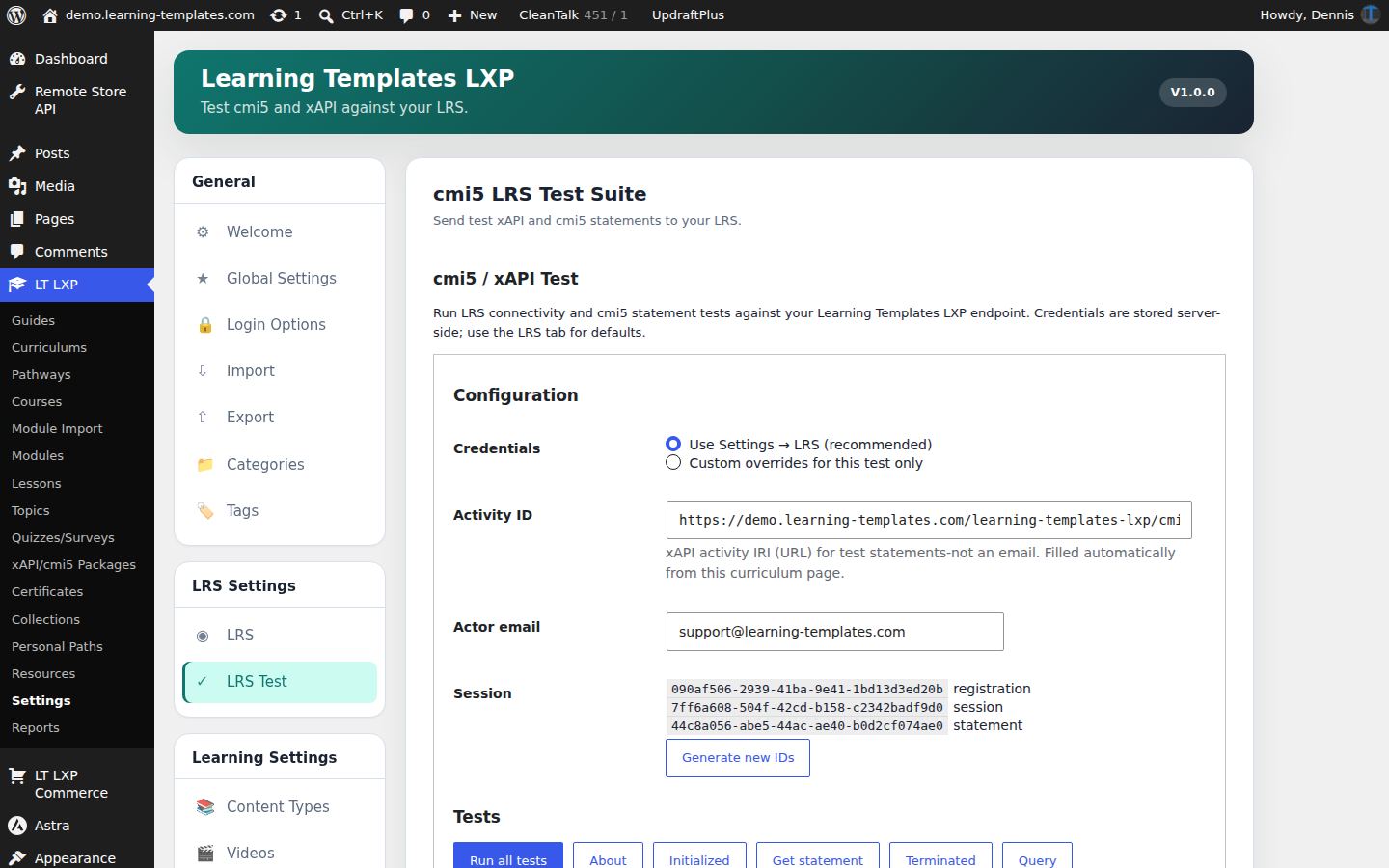
The cmi5 test tool sends test statements to the endpoint shown in the form. By default that is this site. If an administrator types another endpoint, key, and secret, the test goes there only when they run it.
Use case. Before go-live, an administrator runs the conformance checks and launches the sample assignable unit.
The LRS test screen.
Reports
Progress, verbs, and enrollments
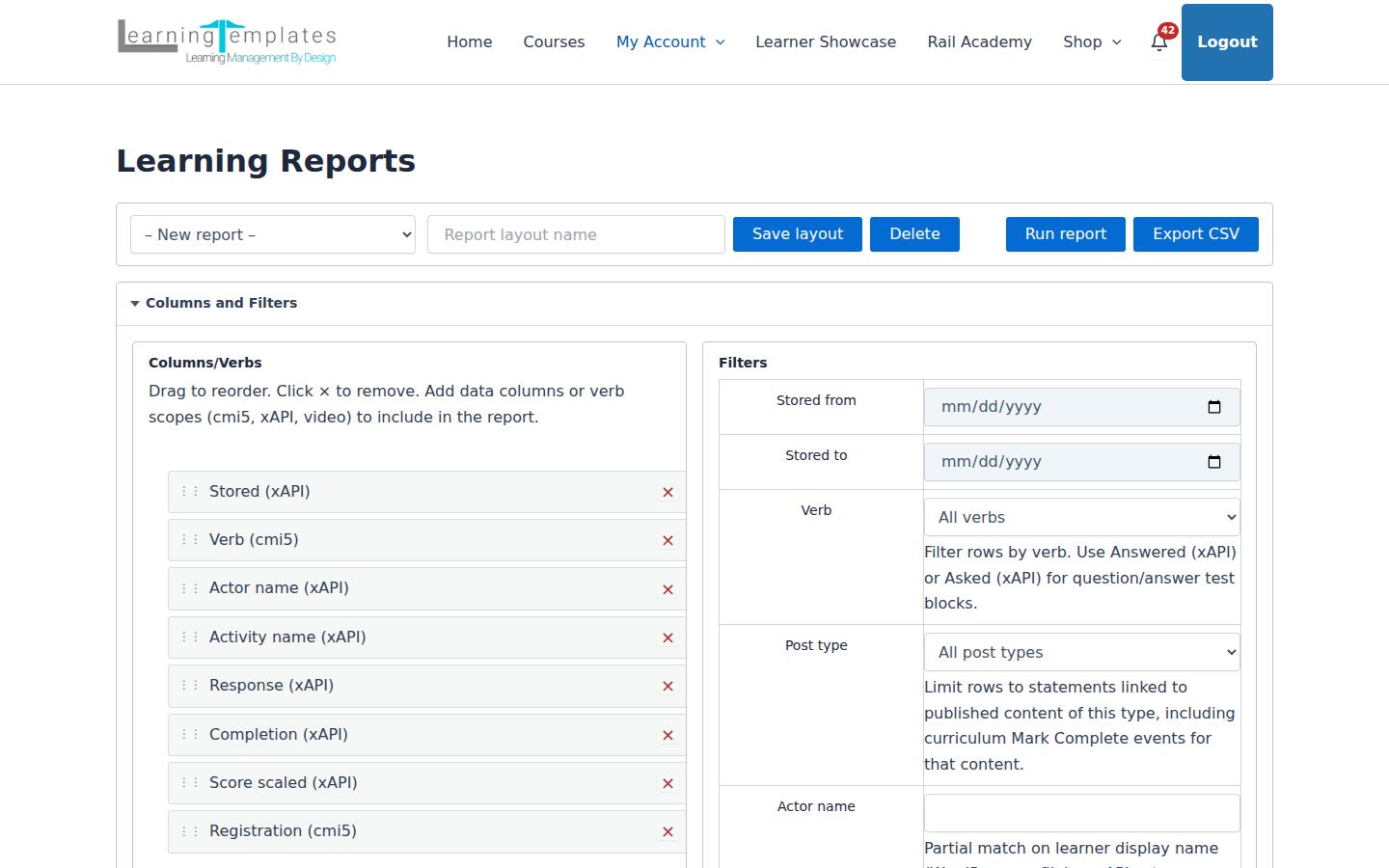
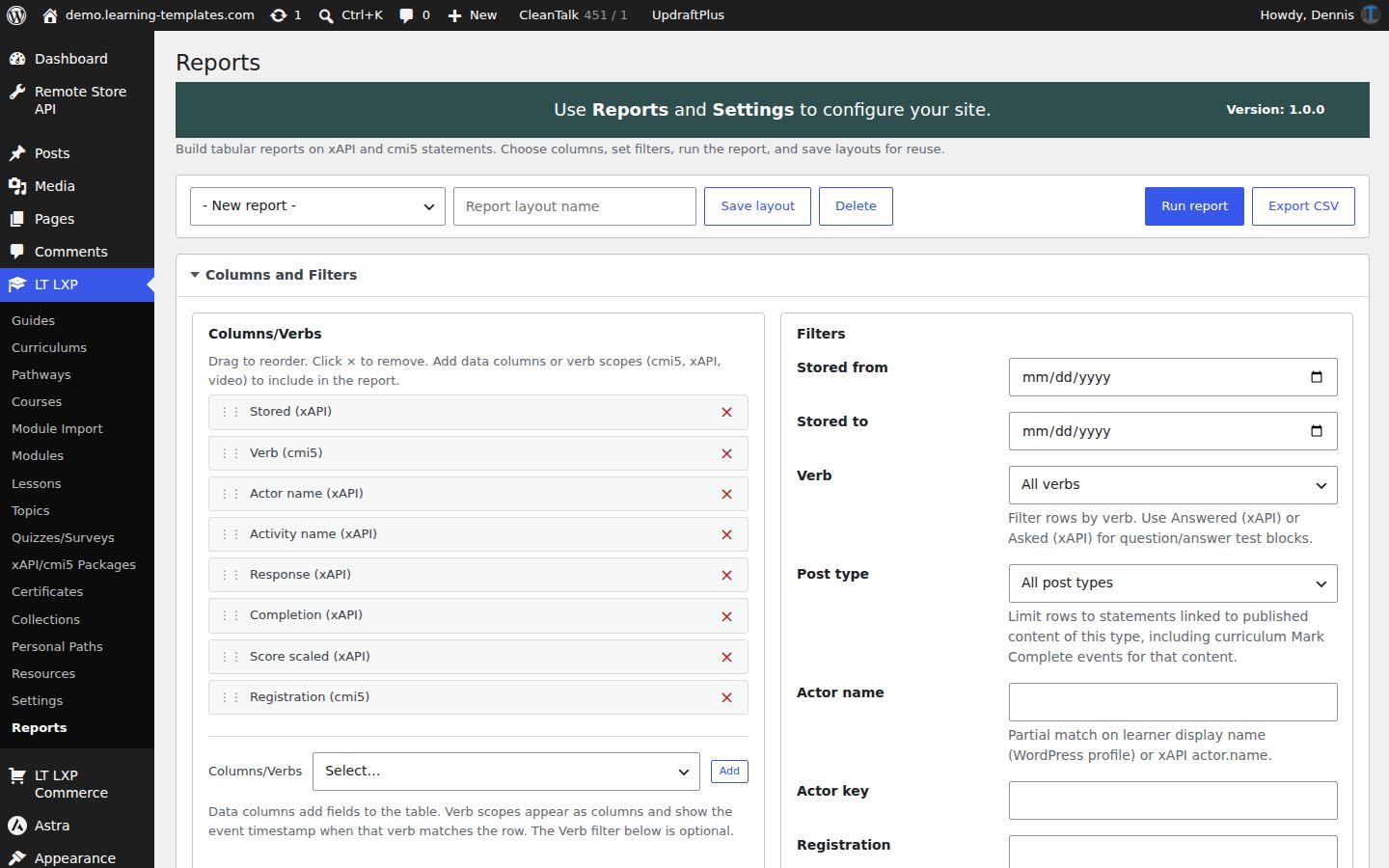
The reporting engine is designed and tested against big data. The report builder chooses columns, verbs, and enrollment filters. Learners and managers can be given a front-end report page. Custom fields can appear as reporting columns.
Use case. A training manager filters the academy to people who have not completed Rail Safety Foundations.
The front-end Learning Reports page. The builder itself is in wp-admin.
Certificates
A certificate is designed on a canvas, awarded by a pathway or quiz rule, and shown to the learner who earned it.
Designer and awards
A credential tied to a real completion
The drag and drop designer places all fields, user and post meta fields, and custom fields on one or more pages. The viewer block lists what the signed-in person has earned. Optional social sharing posts the certificate and share on Facebook, LinkedIn, or X.
Use case. Passing the safety pathway issues a certificate the learner can open from My Account and, if they choose, share.
The certificate builder: drag fields onto the canvas, set the page, and choose a background.
Commerce
Sell a curriculum, a pathway, or a course without WooCommerce. Stripe and PayPal are built in. Orders, subscriptions, vouchers, and coupons are part of the same store.
Shop
Products that enroll
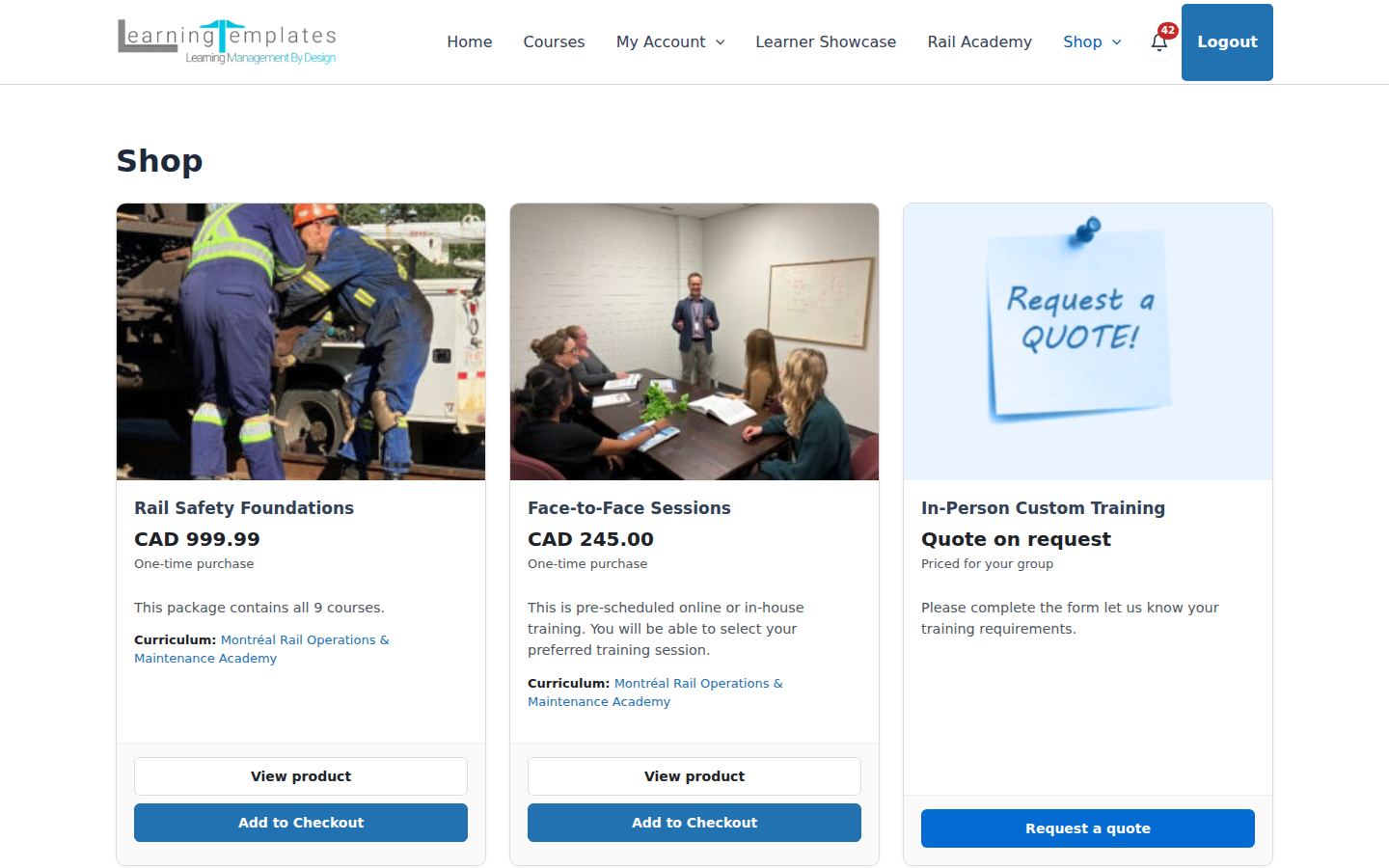
A product can sell the whole curriculum, a pathway inside it, or a course. The shop lists price, what is included, and a checkout action. Pricing can have dynamic coupons applied automatically in the checkout. A quote request is available when the offer is priced for a group. Request a Quote products allow customers to request custom services.
Use case. An outside contractor buys Rail Safety Foundations for CAD 99.99 and is enrolled. A company that wants a private practical asks for a quote instead.
The demo shop.
Product, cart, and checkout
From the card to a paid enrollment
Various payment options such as one-time payment, subscriptions, and invoice payments with seat thresholds, can be applied to a product. Dynamic coupons can be automatically applied at checkout so the more seats are purchased, the deeper the savings.
Use case. A learner adds Face-to-Face Sessions, pays, and the practical pathway appears on My Courses.
Product settings: price, subscription, organization seats, and the invoice quantity threshold.
Instructor-led checkout
ILT training enrollments
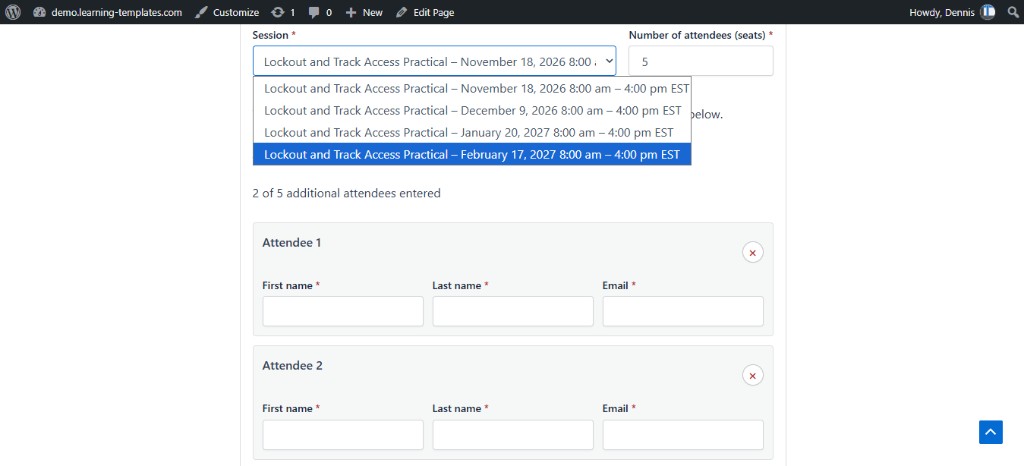
Customers can enroll their team into ILT classes adding the quantity of learners and entering each attendees information during checkout. Attendees will automatically become user in the site and will receive automated emails about their session.
Use case. A manager adds 5 learners to a Face-to-Face Session.
Checkout for an instructor-led class: choose the session, set the number of seats, and enter each attendee.
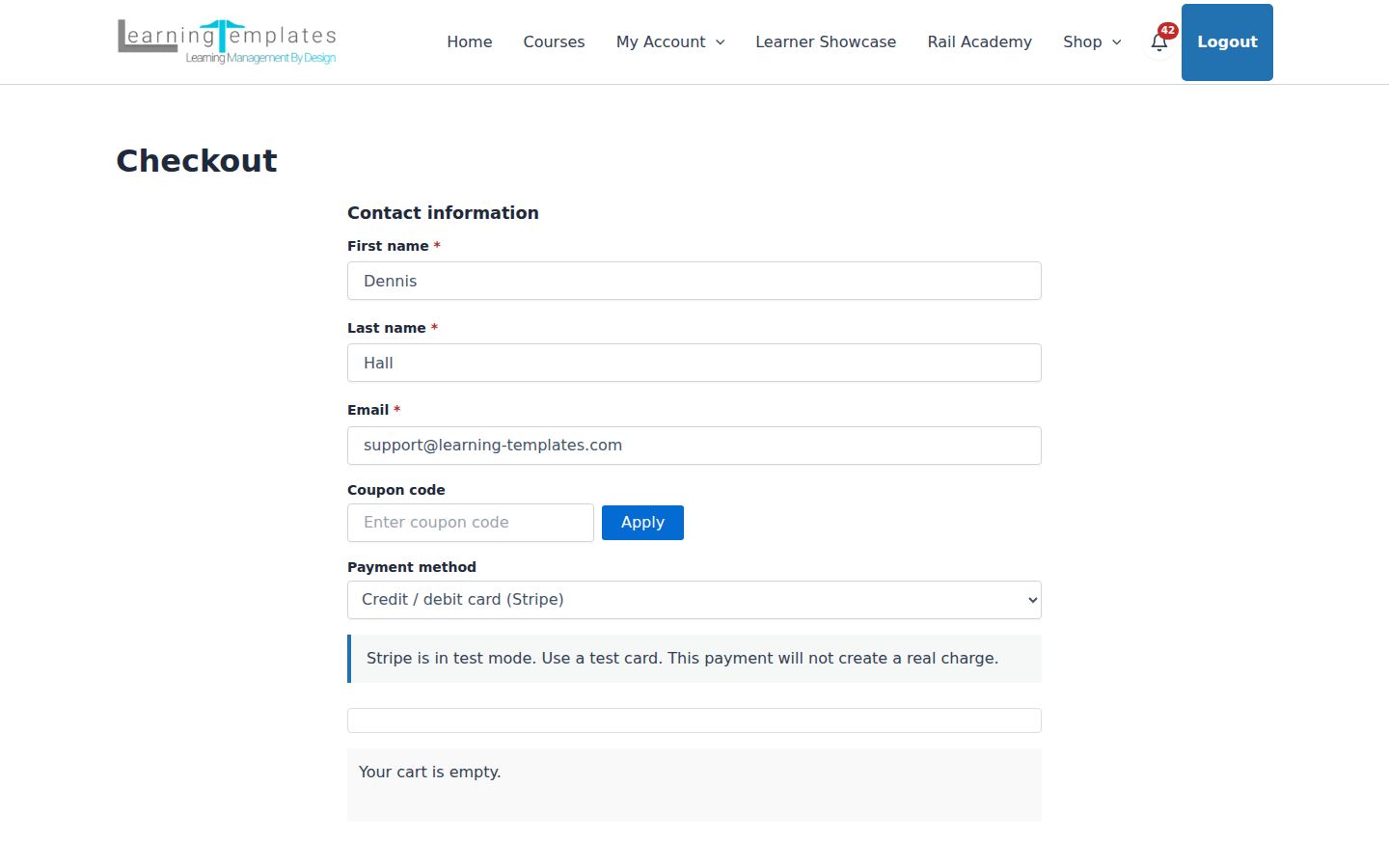
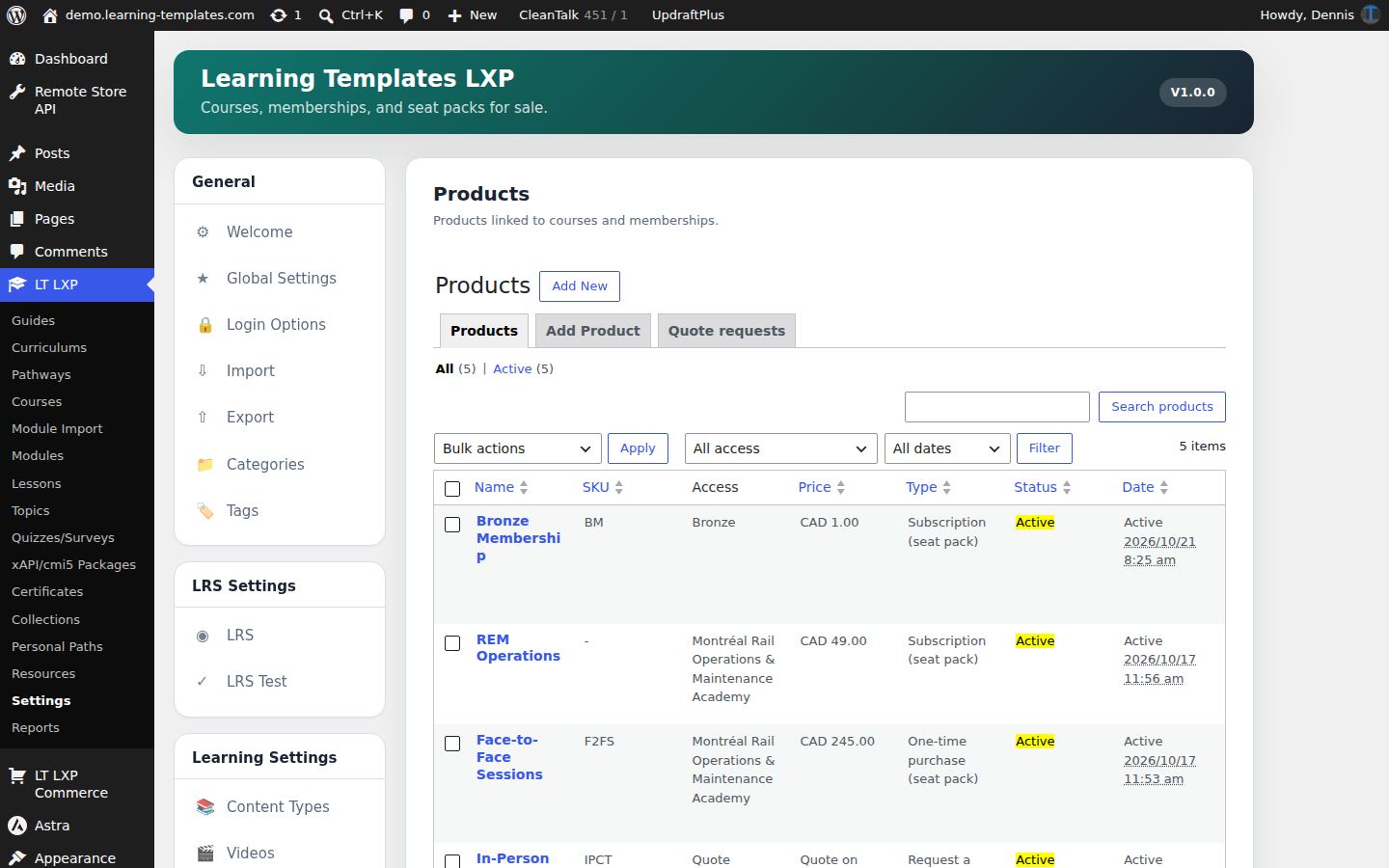
Cart with Rail Safety Foundations ready for checkout.Checkout.Products in settings, where each offer is tied to a curriculum, pathway, or course.
Orders and subscriptions
What was sold, and what renews
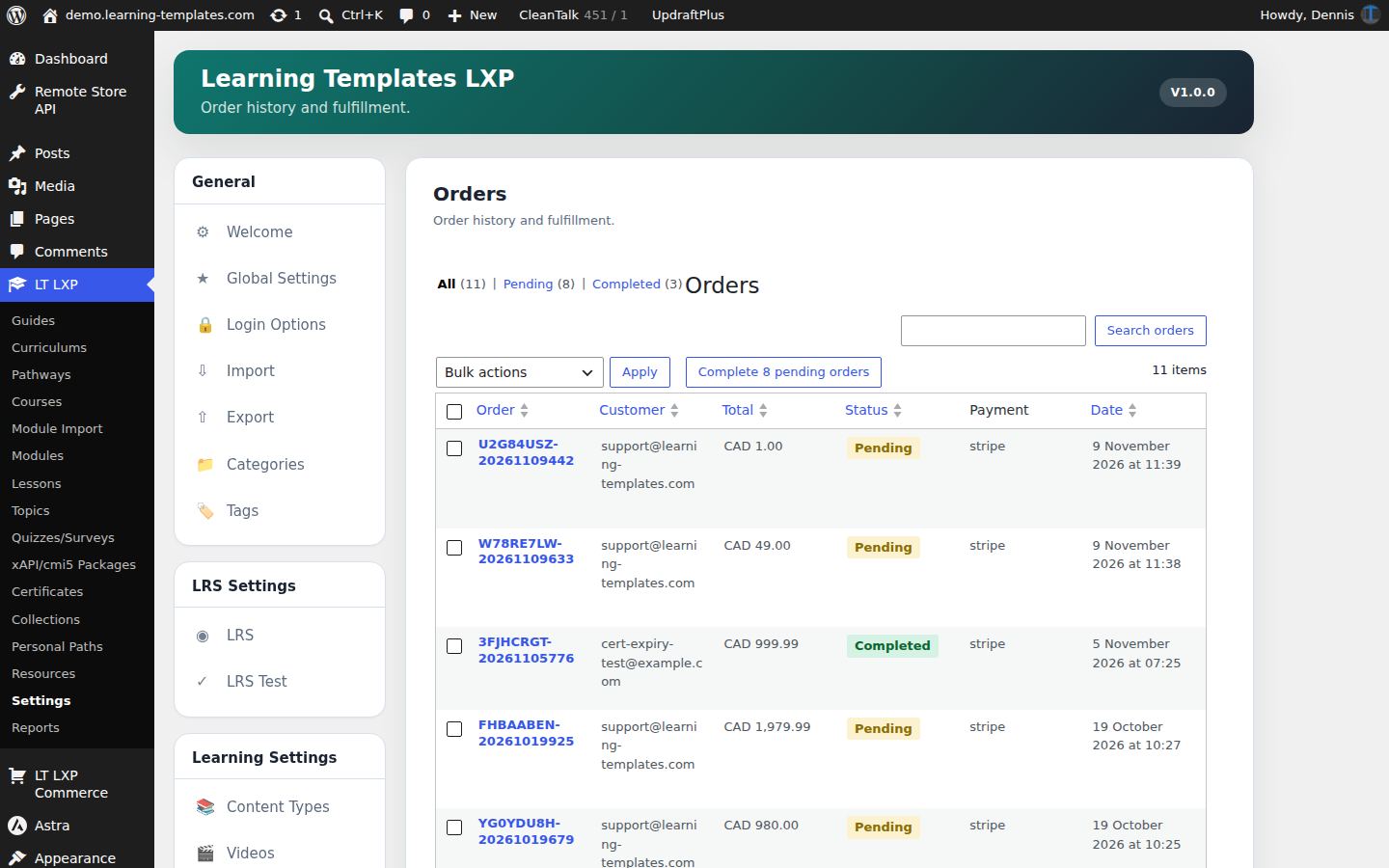
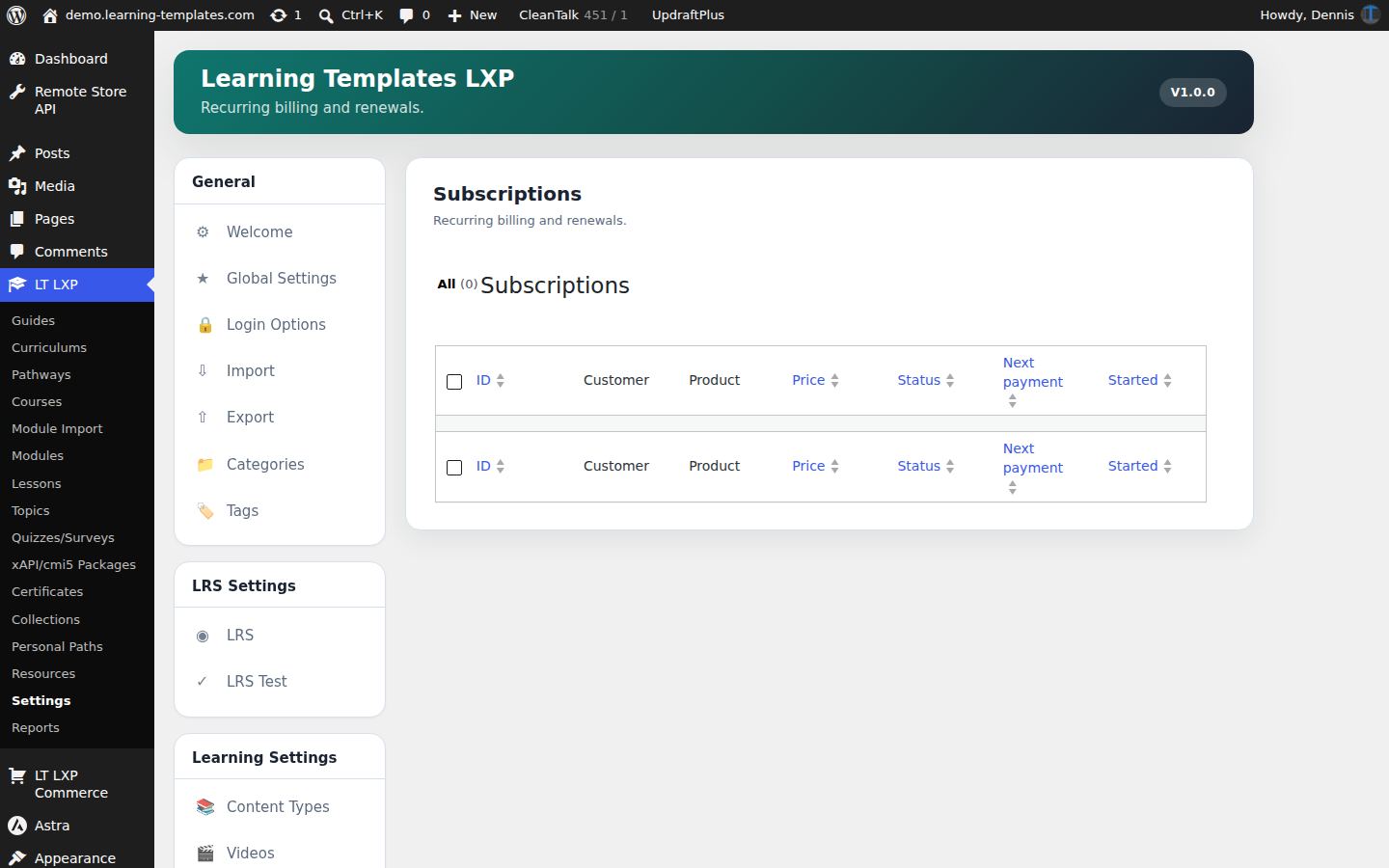
Orders record the purchase and its fulfillment. Subscriptions cover recurring access. Both are lists in Commerce settings, with the gateway events that confirm payment.
Use case. A yearly seat for the academy renews until the organization cancels it. The order history shows each charge.
Orders. Subscriptions have their own list beside this one.
Payments
Stripe and PayPal, only when you turn them on
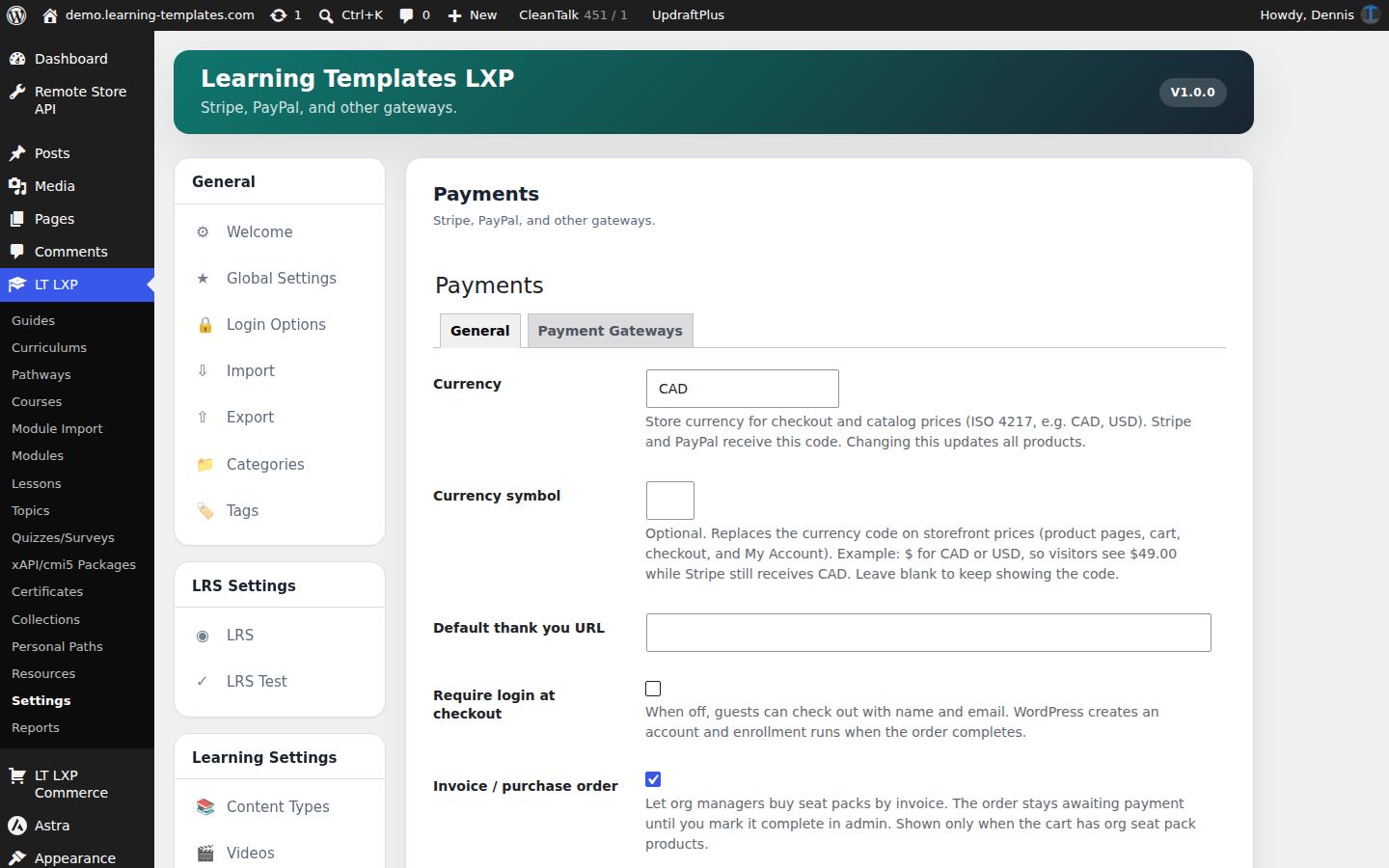
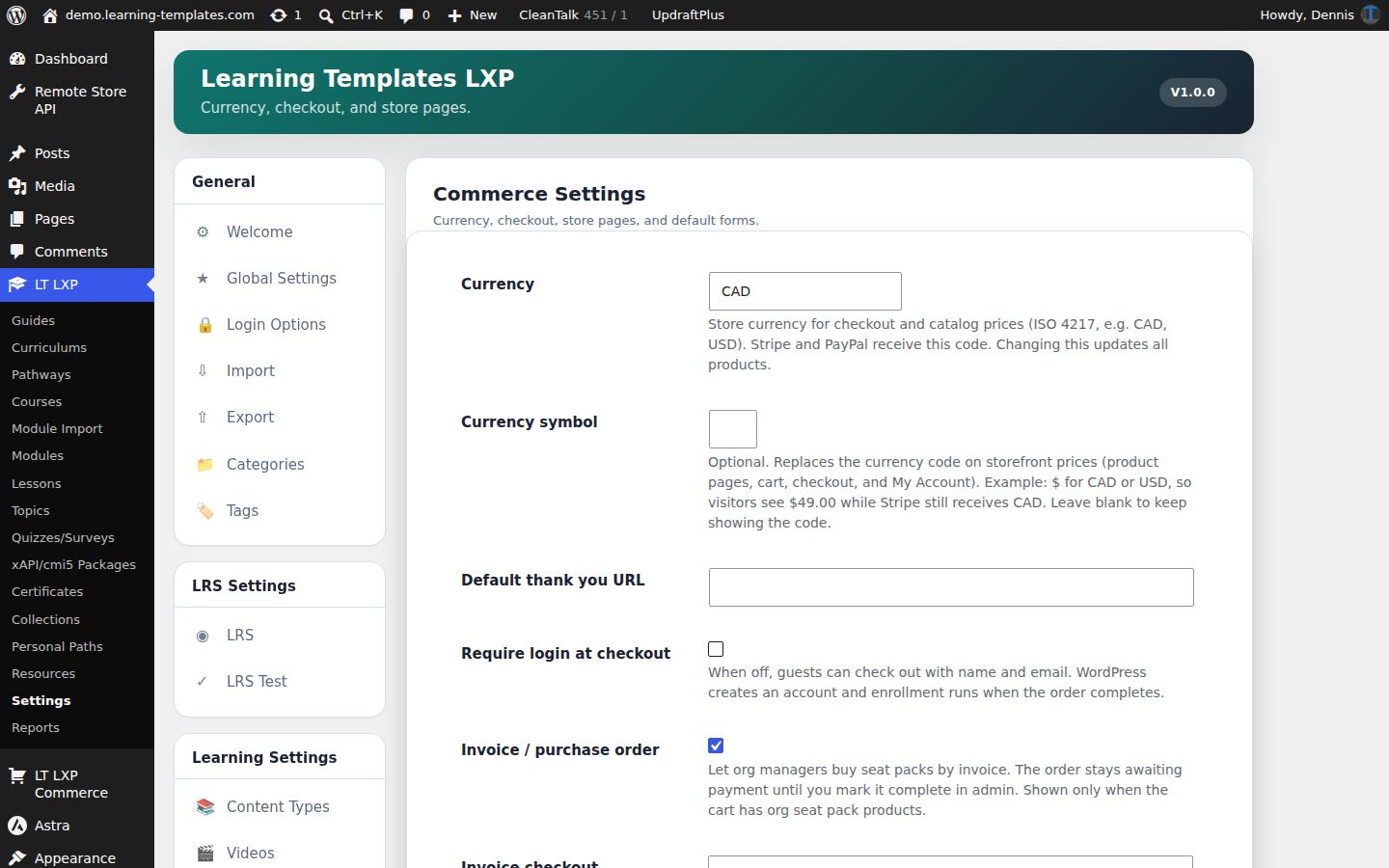
Commerce settings choose the currency and the store pages. Taxes and VAT are managed in the payment gateway. Payments settings hold the Stripe and PayPal credentials and the live or sandbox mode. Nothing is sent to a gateway until that gateway is enabled and a learner checks out. Users are not created or enrolled until the payment is reported as completed by the payment gateway.
Use case. The academy takes cards through Stripe in live mode and keeps PayPal in sandbox until the finance team signs off.
Payments settings.
Vouchers and coupons
A code that enrolls, and a code that discounts
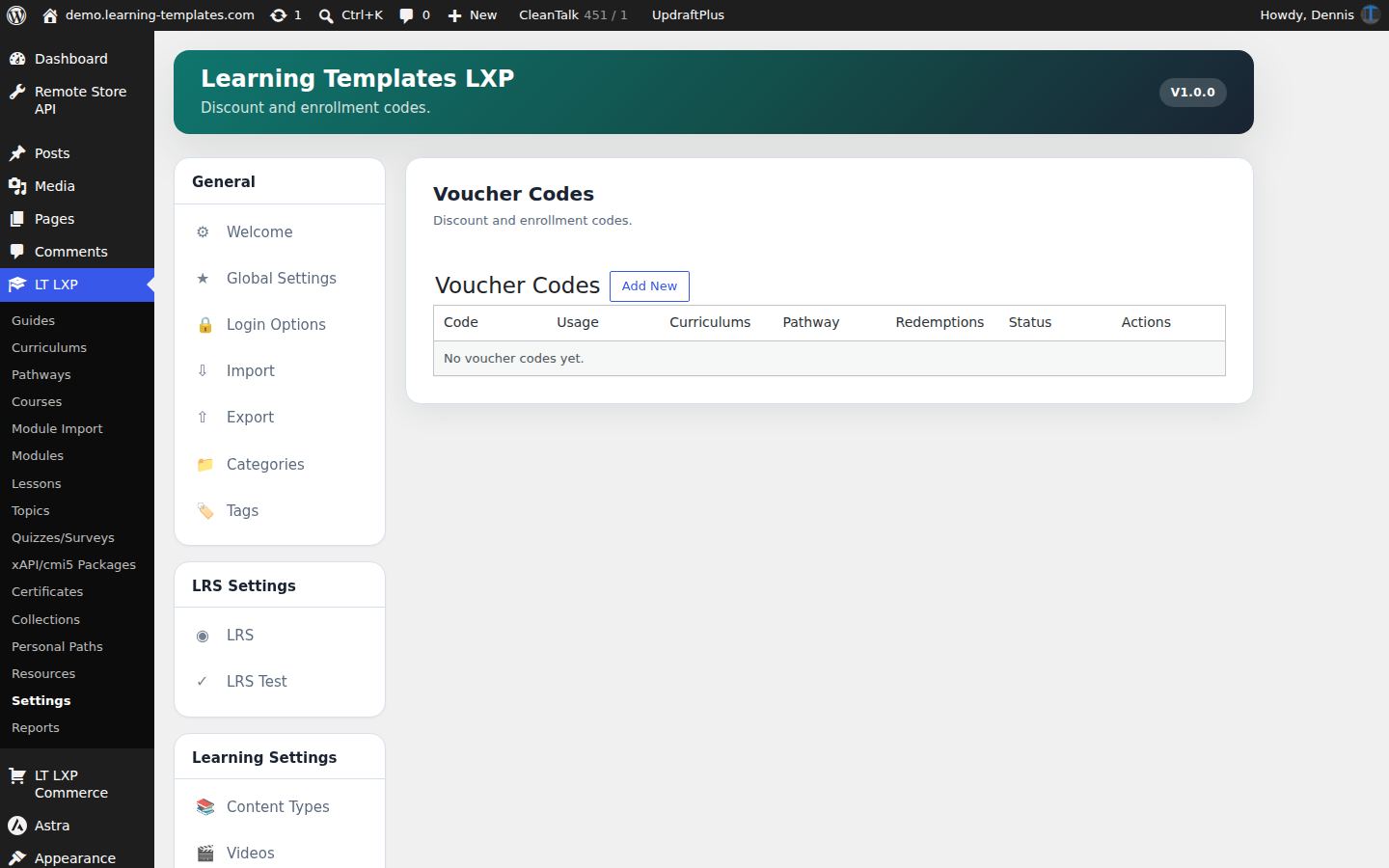
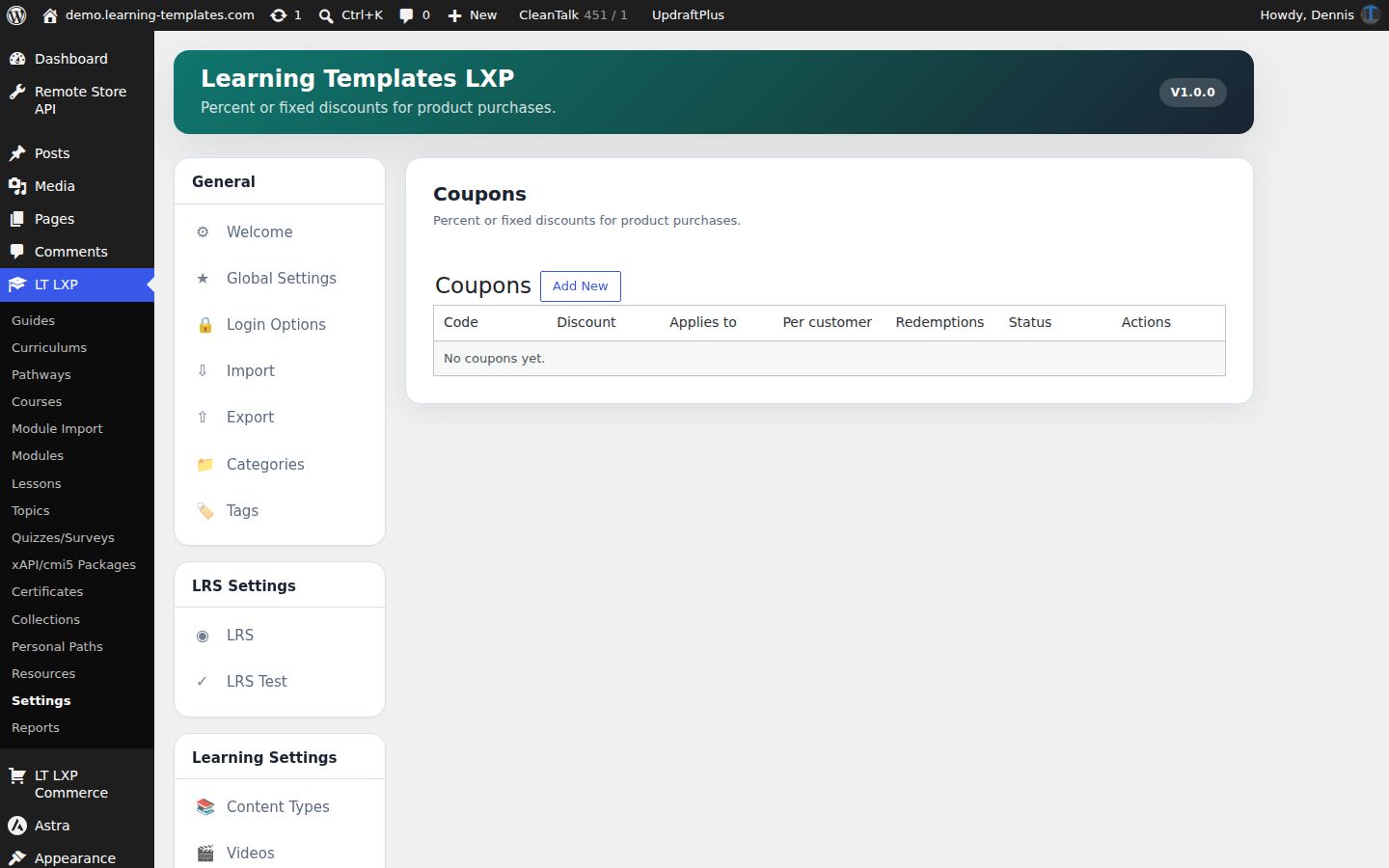
A voucher can enroll someone through a registration form without a card charge. A coupon takes a percent or a fixed amount off a product. They are separate lists so a free seat and a sale price are not the same thing.
Use case. HR emails a voucher for the safety pathway. A conference rate is a coupon on the public product.
Voucher codes. Coupons are the next tab.
People and access
Accounts, organizations, memberships, and forms decide who can see a pathway and who is told when something happens.
Accounts
Login, profile, and My Account
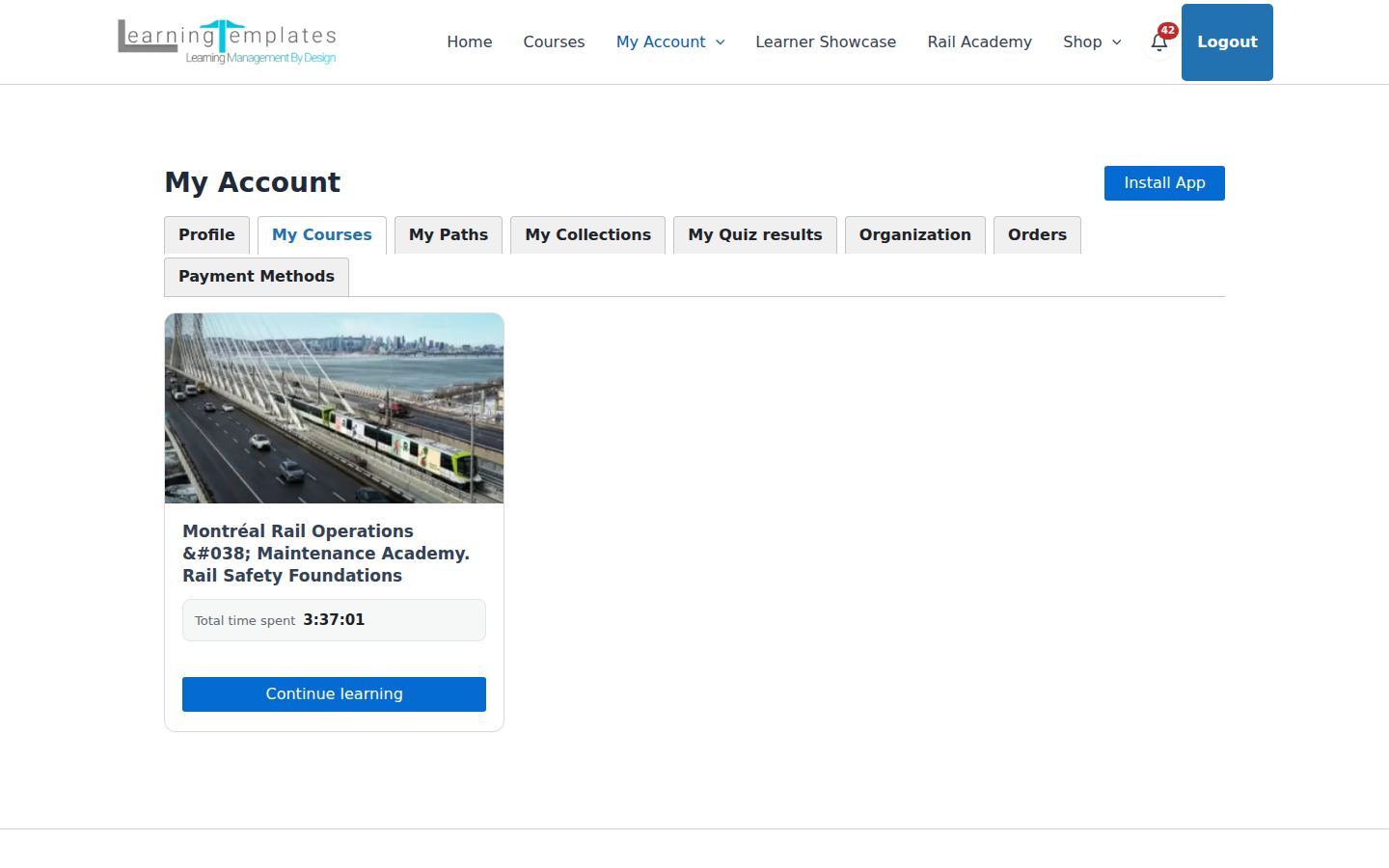
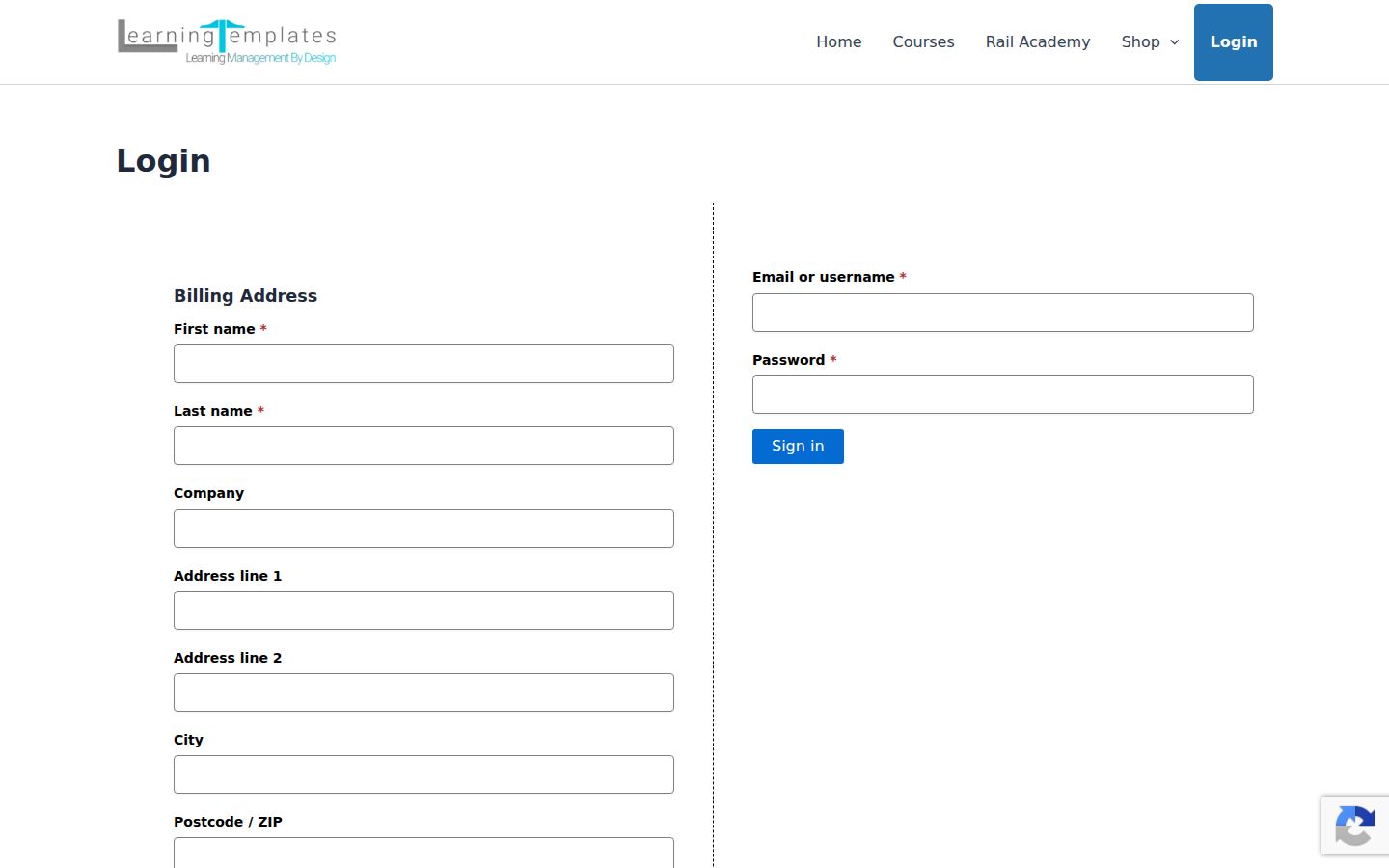
Login and registration are site pages. My Account gathers courses, paths, collections, quiz results, the organization, orders, and payment methods. Menu items can be limited to signed-in people, signed-out people, or specific roles.
Use case. A learner returns, signs in, and My Courses shows the academy with the time already spent and a continue button.
My Account on a desktop window.
Organizations and roles
Who reports to whom
Users settings cover roles, people, and the organization chart. In the drag and drop organization editor in both the dashboard and the front end, a manager can sit above the learners they are responsible for. Role descriptions and which roles exist are configured here, including roles another plugin adds. When in an organization, the manager can only manage their subordinate trees and users.
Use case. A depot supervisor sees progress for their crew and not for the whole company.
The organization chart: search for a person and see who reports to them.
Memberships
A level that opens pages, content, and menus
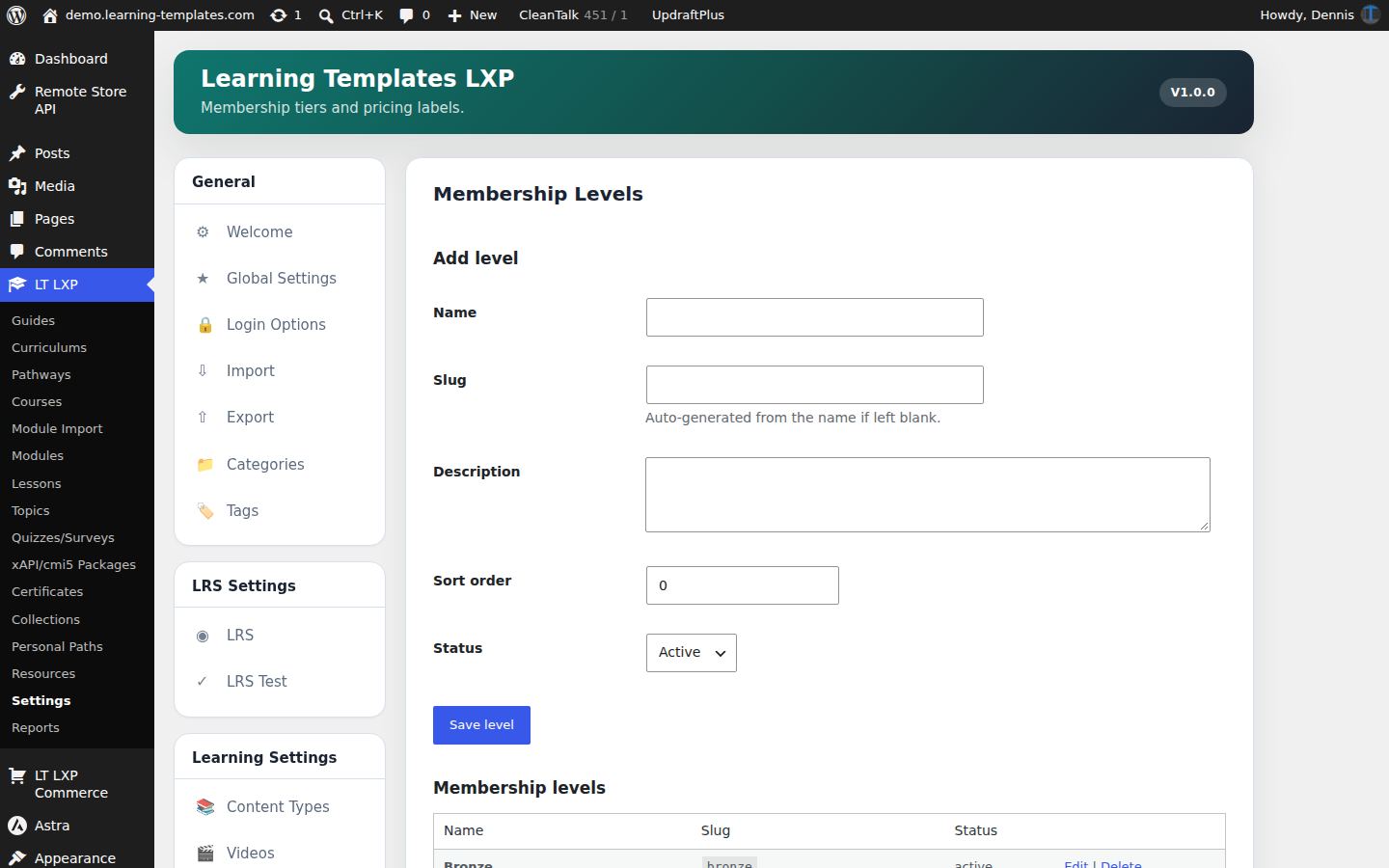
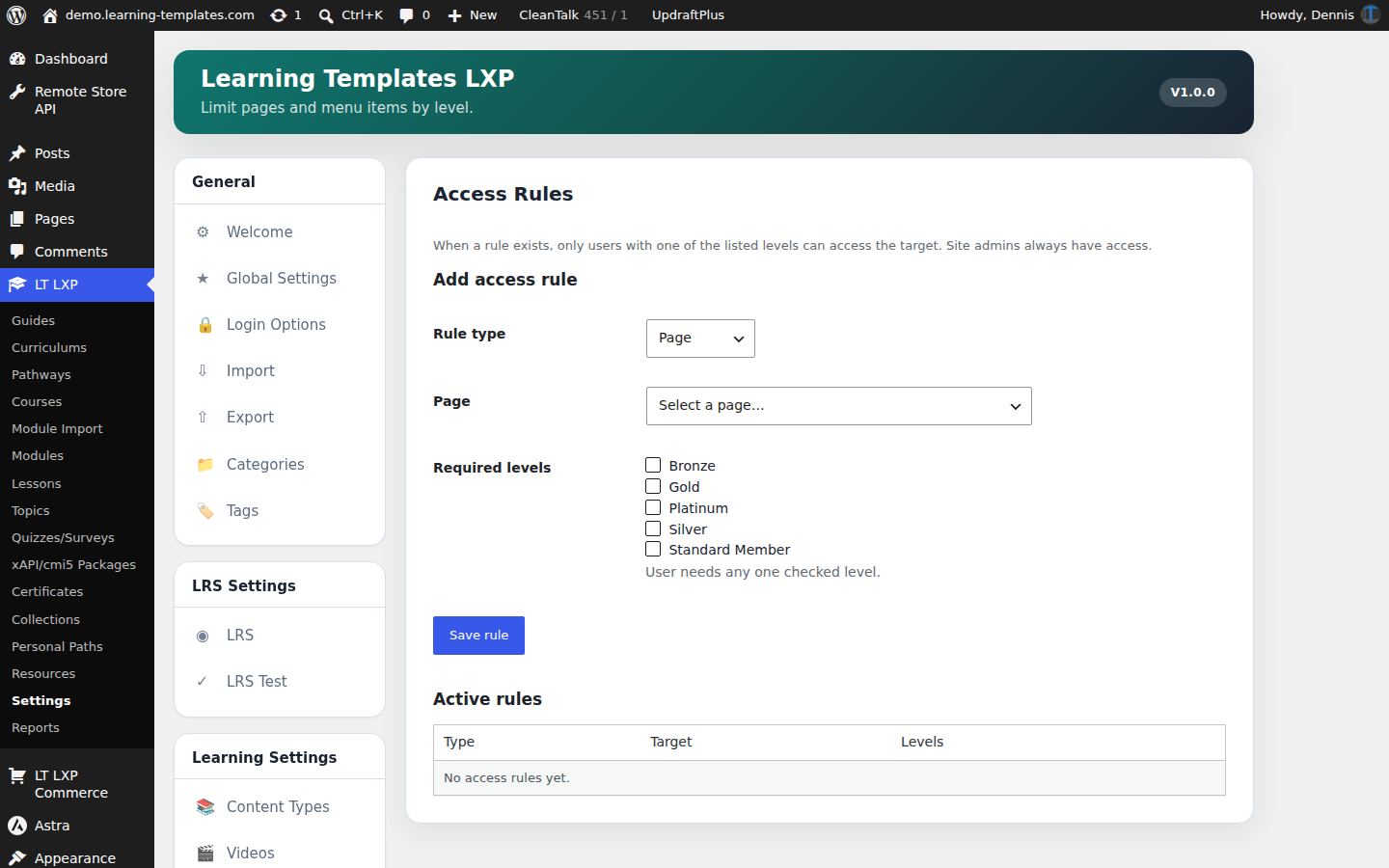
Levels are the tiers you name. Members are the people assigned to them. Access rules limit pages, page content, and menu items by level. Login and role visibility on menus works even when memberships are turned off. Membership blocks can be combined with learning content blocks in any page to create more dynamic combinations of learning levels.
Use case. A “practical cohort” level reveals the session-registration page. Everyone else never sees that menu item.
Membership levels. Access rules are a separate tab.
Forms and custom fields
Registration that collects what you actually need
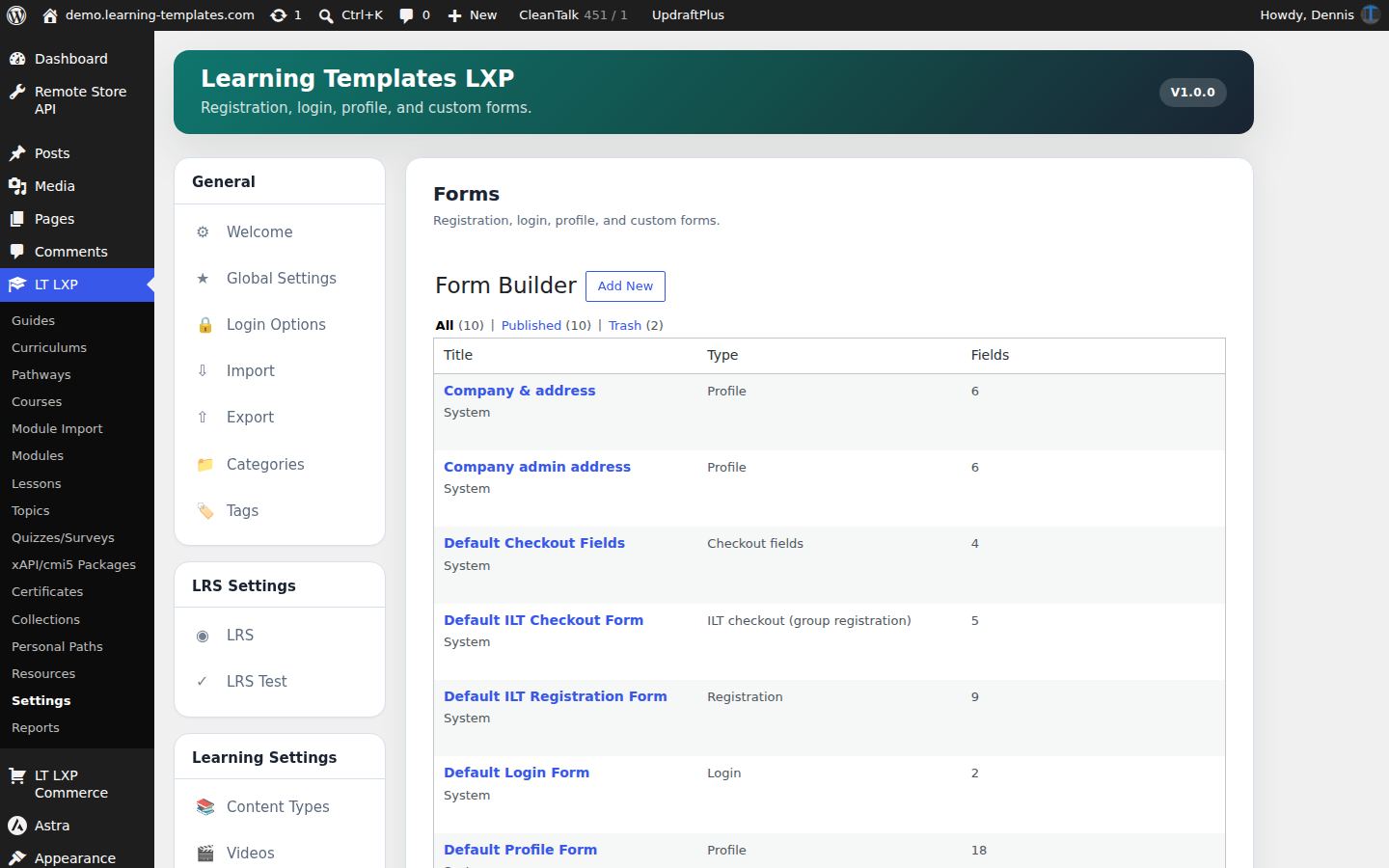
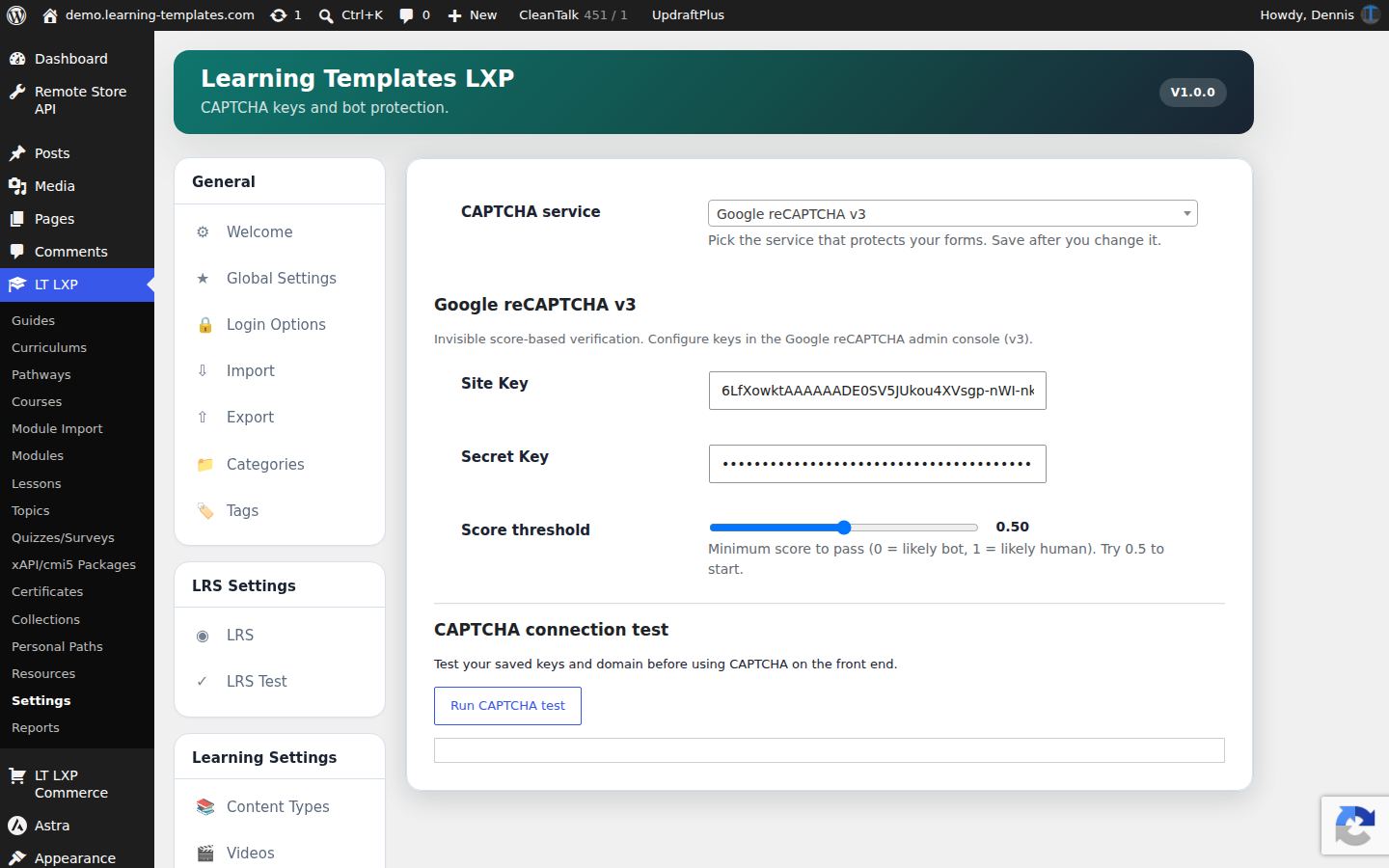
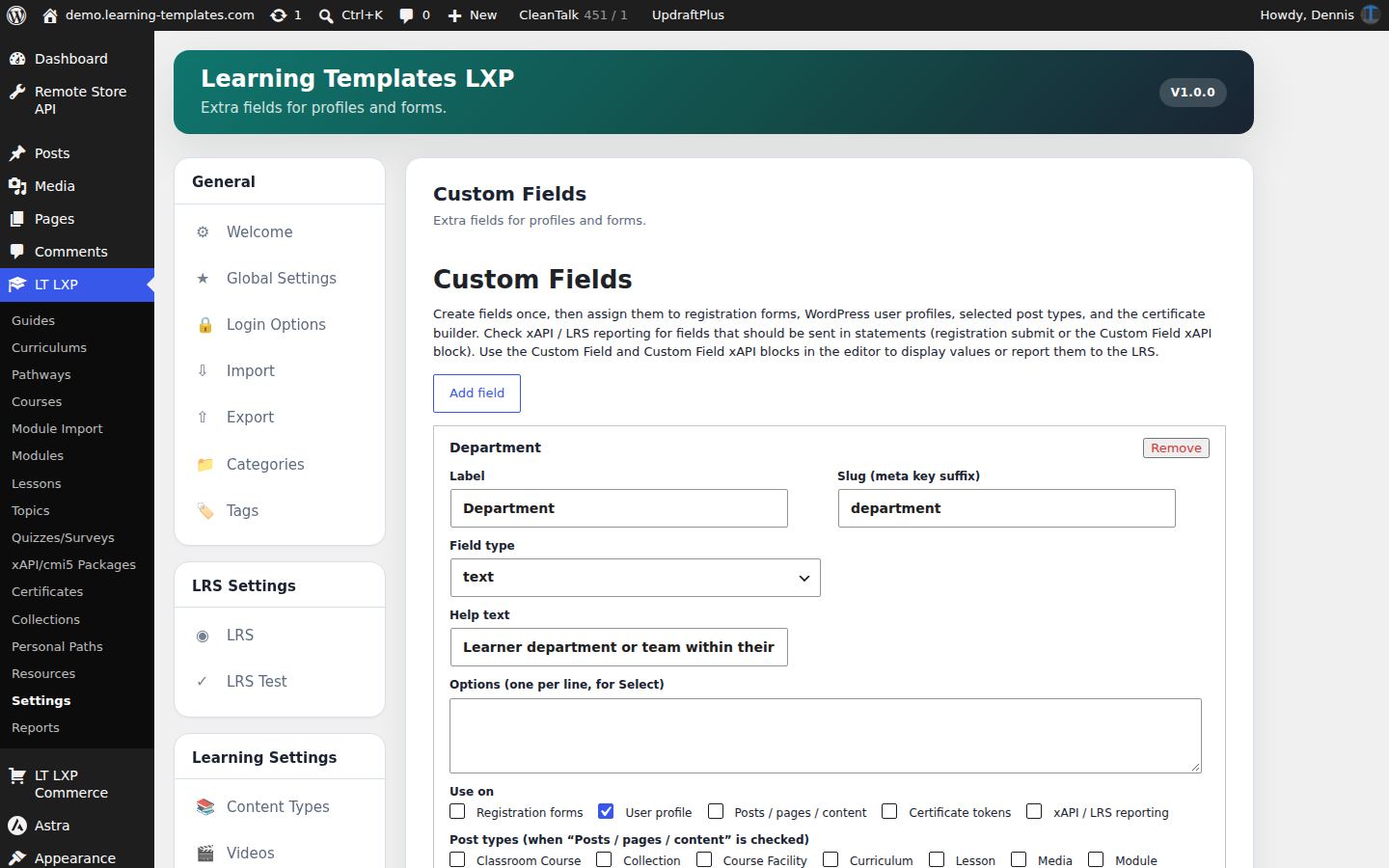
The form builder covers registration, login, profile, and custom forms. A form can require a voucher and can enroll the person who submits it. Custom fields are reused on forms, posts, certificates, and reports. CAPTCHA (reCAPTCHA, Turnstile, or hCaptcha) protects the form when you enable a provider and add keys.
Use case. Enrollment asks for an employee number, stores it as a custom field, and prints it on the certificate.
Forms. Custom fields and CAPTCHA are neighboring settings.
Communication
The emails that go with the bell
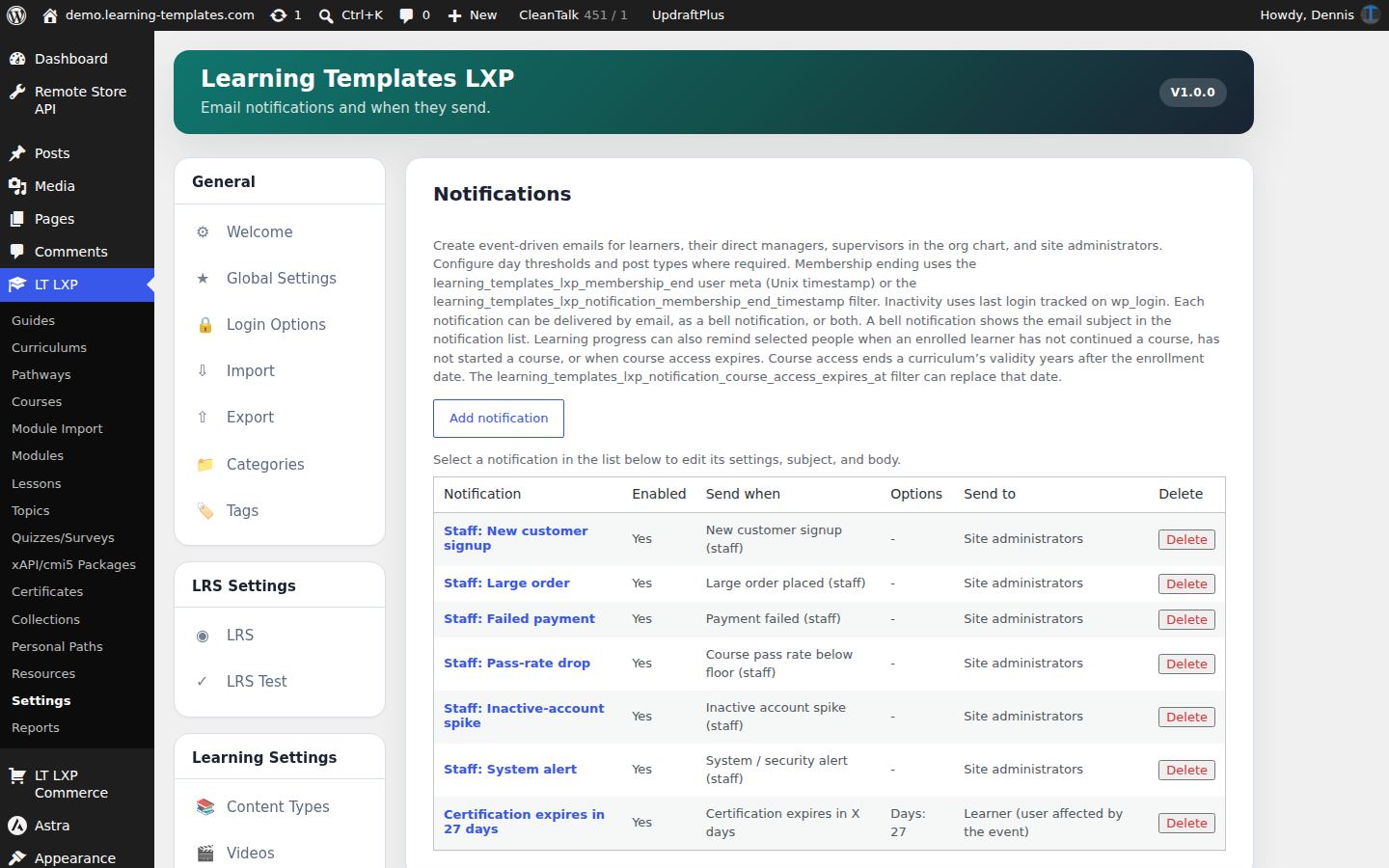
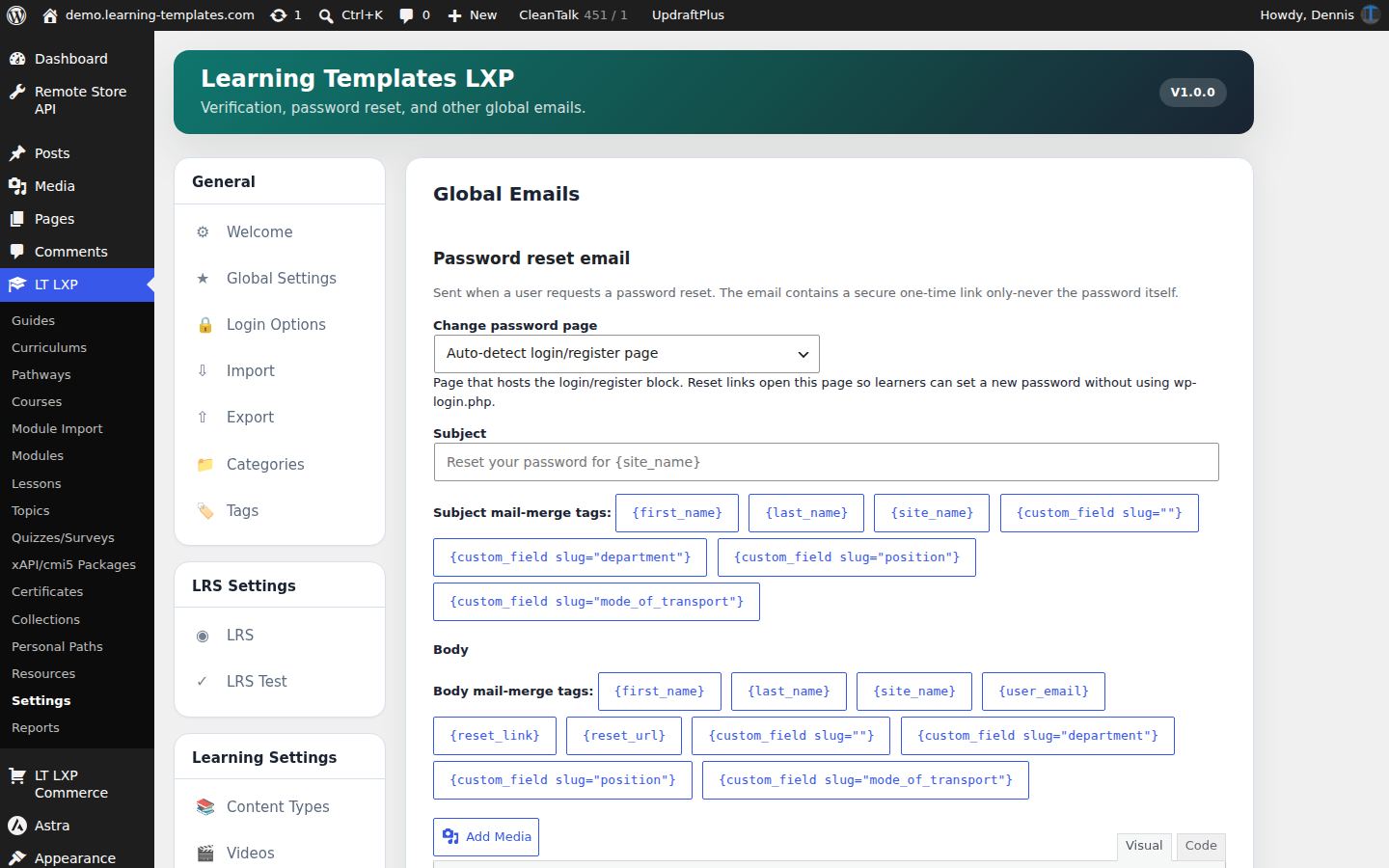
Global emails cover verification, password reset, and the shared header and footer. Notification templates choose the event, the subject, the message, and whether to send email, the bell, or both. Commerce emails cover orders and subscriptions.
Use case. Enrollment sends one email and one bell item, both using the learner’s name and the curriculum title.
Notification templates.
The LXP layer
These features sit on top of the pathway: things learners collect, build, follow, and talk about. Each one can be switched off.
Collections and personal paths
Saved items, and a path the learner assembles
A collection is a set of saved or bookmarked items. A personal path is a sequence the learner builds, separate from the organization’s curriculum. Both show up as tabs on My Account.
Use case. An electrician saves three maintenance lessons into a collection, then orders them into a personal path for a night shift.
My Collections and My Paths on My Account.
Recommendations
A next step based on what they already did
The engine looks at enrollments, progress, saved items, shared content, tags, and employee-generated resources. It suggests further learning rather than a second copy of the official pathway.
Use case. Someone who finished rolling-stock inspection is offered the condition-monitoring lesson, because the tags overlap.
Save and Add to collection keep a learner’s collection. Share a resource is the employee-generated article, link, or lesson.
Social learning
Profiles, a feed, follows, and a cohort discussion
Learners can have a profile, follow someone, and see an activity feed. A curriculum or pathway can host a cohort discussion with @mentions. The learner showcase is a public page for work you choose to feature.
Use case. During Rail Safety Foundations, the cohort asks questions under the pathway. A finished project is featured on the showcase page.
Public collections, people to follow, and the activity feed on the learner showcase.
Employee content
A resource a learner submits, and a person approves
Learners can submit a resource. It waits in a moderation queue. Approved resources can be used in pathways, collections, and recommendations. The submit block has to be placed on a page, and the feature has to be on.
Use case. A maintainer writes up a tire-inspection tip. A supervisor approves it and it becomes a resource other crews can open.
In the player, a learner writes a resource and submits it for approval.
Configuration
The same site can run a small course list or the full academy. Features, content defaults, the Customizer, import, and the guides are how you set that up.
Feature flags
Turn a module off and its menus go with it
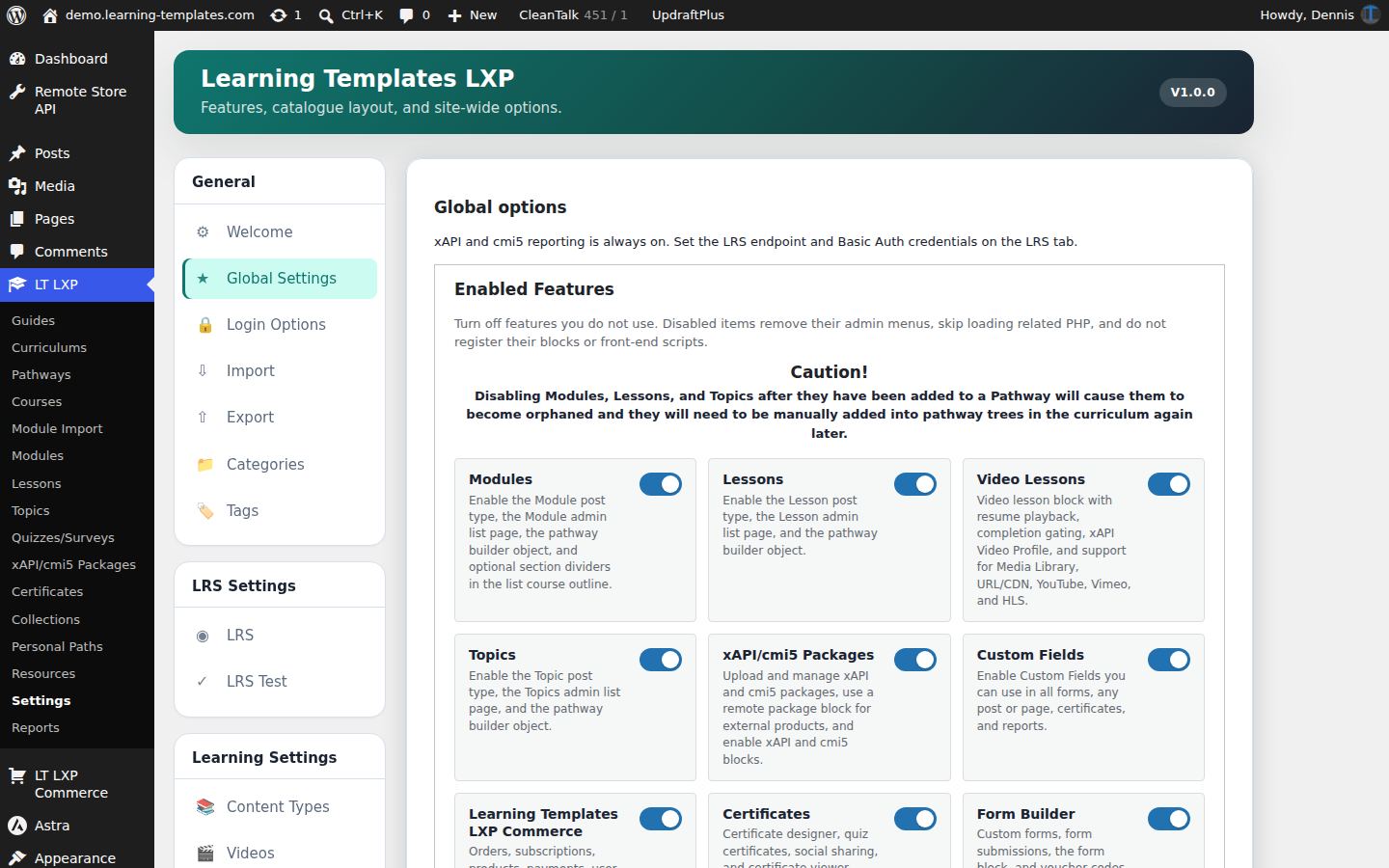
Global Settings lists every major module: pathways pieces, commerce, certificates, forms, memberships, reports, communication, the player, journey map, collections, employee content, personal paths, recommendations, social learning, and the installable app. Switching one off removes its admin menus and stops loading that code. Your orders, enrollments, and other saved data stay.
Use case. A site that only teaches and never sells turns Commerce off. The shop menus disappear. Turning it back on brings them back.
Enabled Features in Global Settings.
Content defaults and the Customizer
How new content behaves, and how blocks look
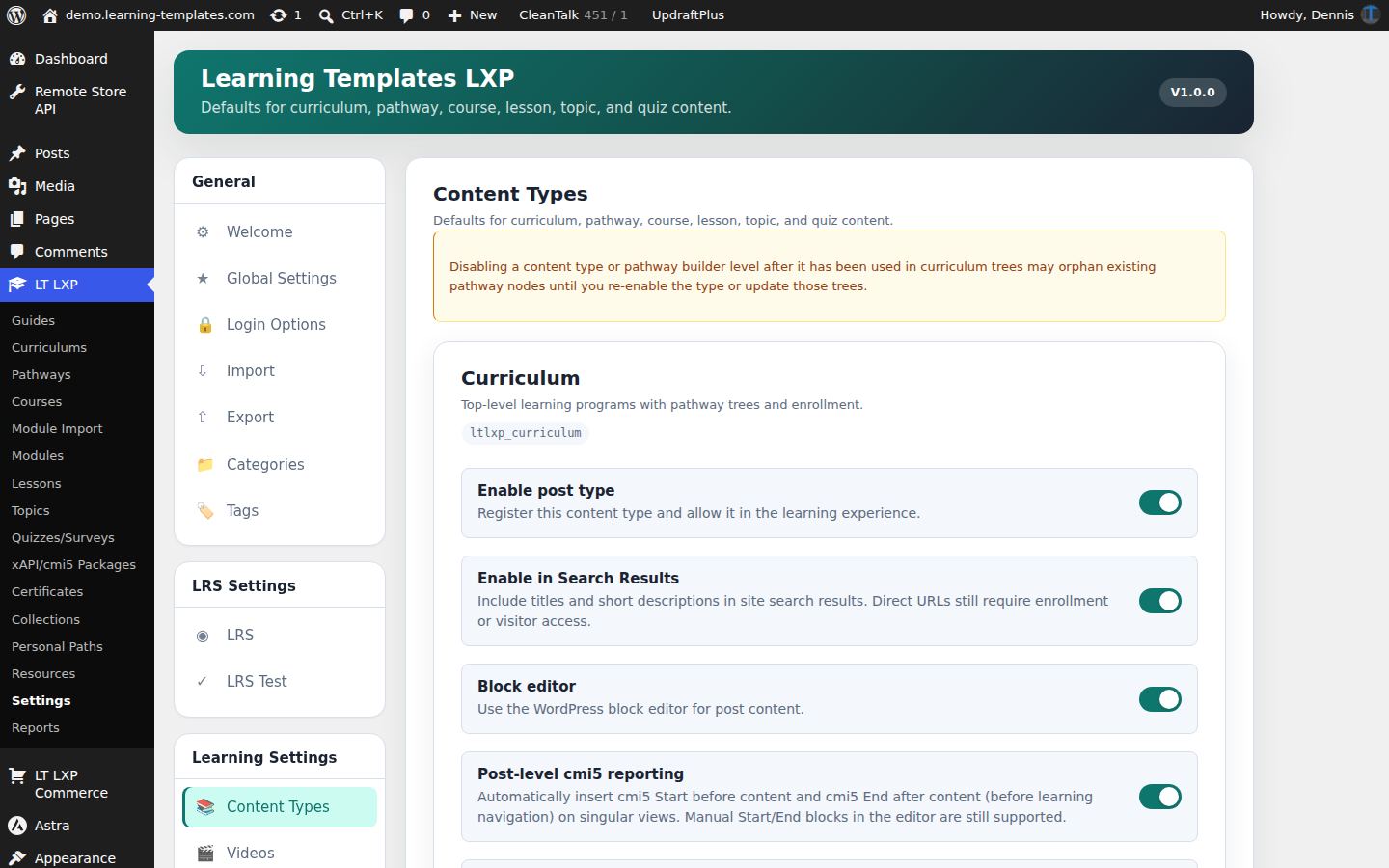
Content Types sets defaults for curriculum, pathway, course, lesson, topic, and quiz. The Customizer adds a Learning Templates LXP panel: global accents, the learner player, the journey map, content-type icons, and block styles. Those settings belong to the plugin, so they survive a theme change.
Use case. Every new lesson starts gated, and the player hides the breadcrumb, without editing a template.
The Customizer after the homepage preview has loaded, with the Learning Templates LXP panel in the list.
Setup, import, export, and guides
The first curriculum, and the notes beside it
The setup wizard walks through pages, settings, and a first curriculum. Import and export move curriculum content as CSV. Categories and tags organize it. The Guides screen is the in-plugin handbook for administrators.
Use case. A new site runs the wizard, imports a spreadsheet of lessons, and keeps the guides open while the pathway is assembled.
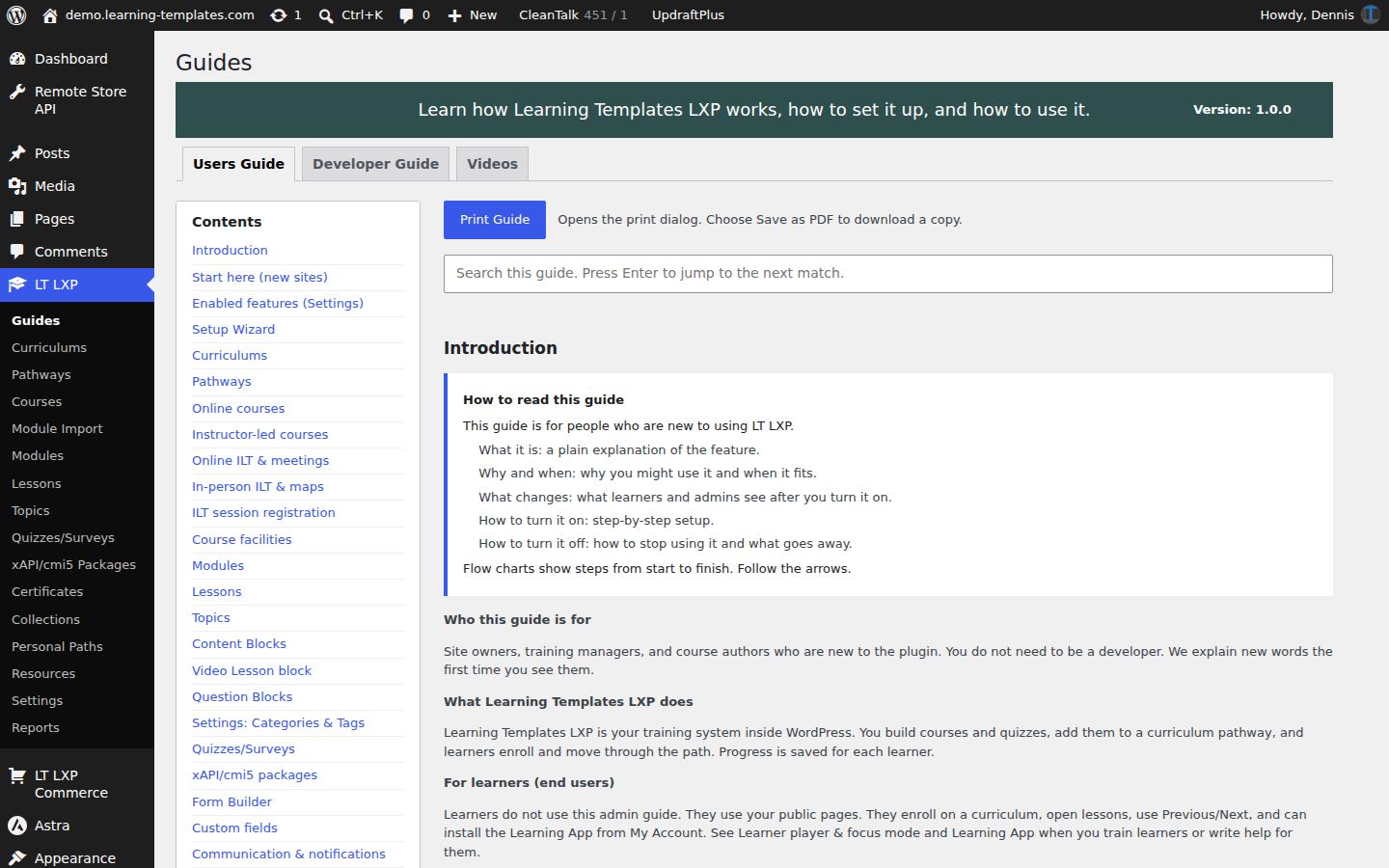
Guides inside wp-admin.
Blocks, widgets, and shortcodes
Control and user blocks
There are 86 blocks, 86 widgets, and 26 shortcodes packaged with Learning Templates LXP. These blocks control content visibility, interactions, learner progress and xAPI/cmi5, H5P interactions, quiz/survey questions and summaries, as well as what to report.
Use case. The new site contains advanced learning objects designed to make the platform as flexible as possible while maximizing learning potential and providing deep data analysis.
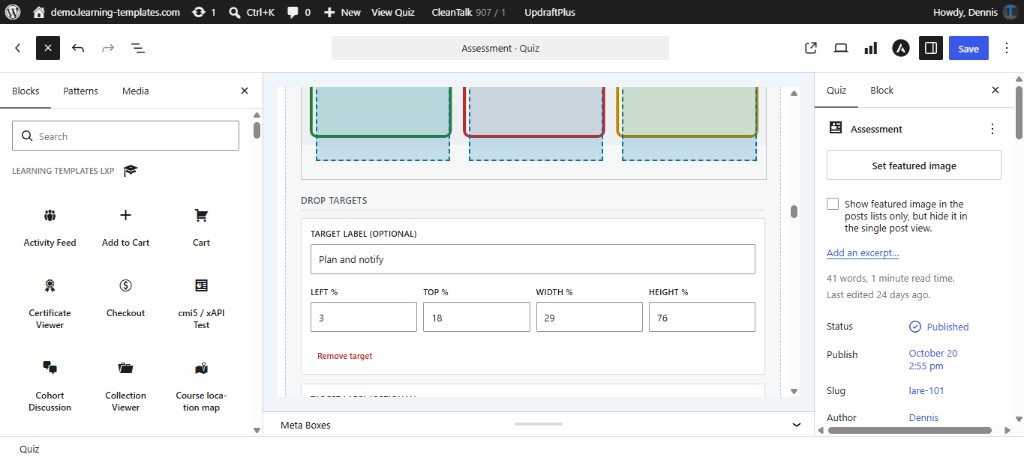
Learning Templates LXP blocks in the editor, beside a quiz drop target.
More of the settings hub
Each of these is a real settings screen on the demo.
Content type defaults.Global emails.Commerce general settings.Subscriptions.Coupons.CAPTCHA.Custom fields.Membership access rules.Report builder.The login page visitors see.Classroom course editor, including session and location fields.Lesson editor.
Installable app
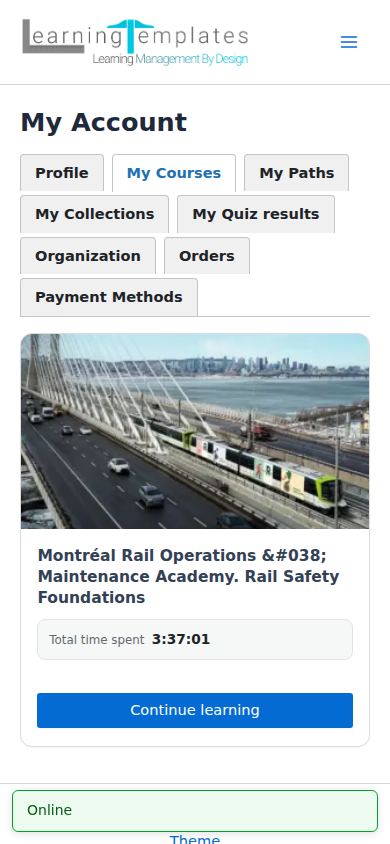
With PWA and offline learning turned on, the site can be installed and can keep learning actions on the device until the network returns. These two pictures are phone-sized views of the demo.
The app
My Account, installed
My Account includes Install App. Once installed, the site opens like an app: the same account, courses, and continue button, with an online status that only appears in that installed view.
Use case. A maintainer adds the academy to their phone’s home screen and opens My Courses the same way they open any other app.
Phone view of My Account as the installed app, including the Online status.
Offline sync
Work done offline waits, then syncs
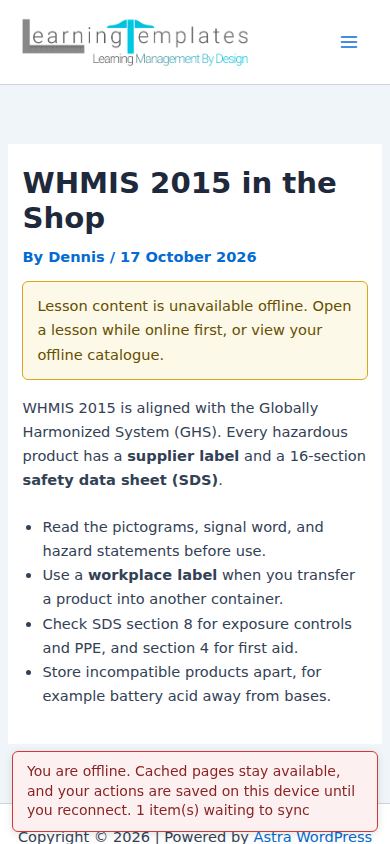
Completions, quiz answers, and xAPI activity made while offline are stored on the device. The app tells the learner the page was saved here and how many items are waiting. When the device is online again, that queue is sent to the site.
Use case. Someone marks a lesson complete in a tunnel. The phone keeps that action and syncs it when they reach the platform.
Offline on a phone: the lesson note, and “1 item(s) waiting to sync.”
Companion Add-ons
These free Add-ons are available to Learning Templates LXP portal members. They are optional. Learning Templates LXP runs without them.
LT LXP Customizations
A companion for sites that want a customized portal on top of the learning platform. It adds the most commonly asked for tools in the front-end in an attractive and functional shell and redesigns the UI, role-based workflows, a public catalogue, seat purchase, receipts, ILT scheduling and customer certificates, certificate preview, promotions, a course builder, and account forms. This add-on was built to be your place to add custom code and redesign your portal. It needs Learning Templates LXP to be active.
LT LXP Module Import
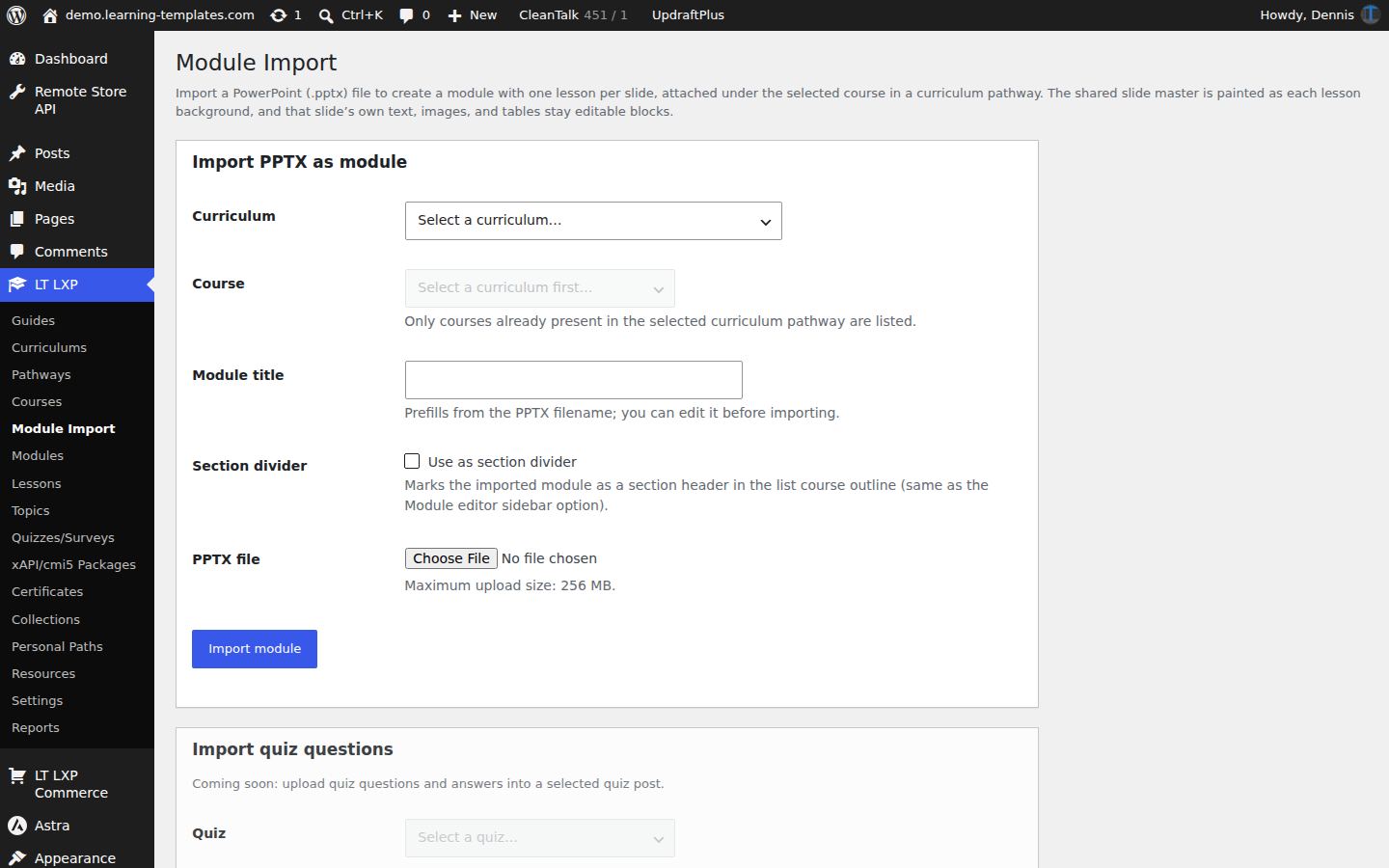
Imports a PowerPoint file. Each slide becomes lesson content, ordered under a module you attach to a curriculum course. Images in the deck are brought into the media library. It is for turning an existing classroom deck into pathway content, not for importing quizzes yet. Once imported, your PowerPoint slides will become Gutenberg blocks in your Learning Templates LXP content and they will be able to be formatted for desktop, tablet, and mobile views.
Note. This Add-on relies heavily on your PowerPoint content being properly built prior to importing it. Our tests have proven that, when an import produces garbage output, it has always been traced to the PowerPoint not being properly built. This Add-on lets you use PowerPoint Master Slides. Master slides are a powerful tool that help you format your PowerPoint content properly - leading to a great import result.
Module Import on the demo, under the Learning Templates LXP menu.
LD to LT LXP Migrator
Moves a LearnDash site onto Learning Templates LXP on the same WordPress install. Courses, sections, lessons, topics, quizzes, questions, and certificates come across, along with enrollments, progress, quiz results, and completions. It lets you dry-run LearnDash content as well as learners before committing the final migration. The dry-run and final migrations produce detailed reports letting you know exactly what will, and will not, be migrated - and why it won't be migrated. It can build the organization chart from LearnDash groups and create commerce products and learner pages. Historical imports do not send new enrollment emails or award certificates dated today.